Custom Post Types and Taxonomies: When to Use Each
Custom post types and taxonomies explained for WordPress: when to use each, how to register them in a plugin, and what to check before launch.
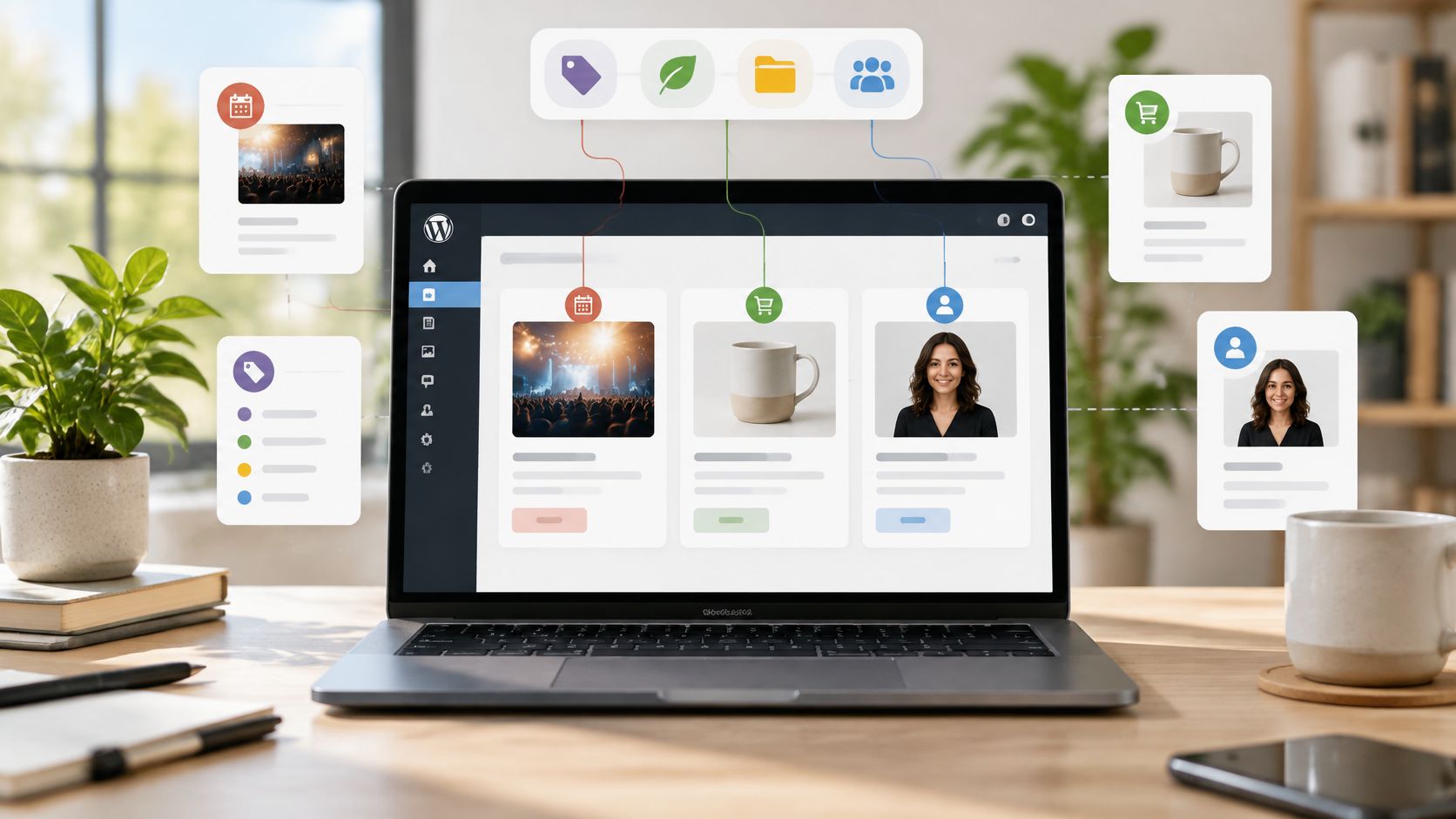
You've added your first event as a regular blog post, your first team member as a page, and your first product as another post with the price typed into the opening paragraph. It works for a week. Then a visitor asks for a page that lists only upcoming events, your editor can't find staff profiles without scrolling through news, and changing a price means hunting through body text. That tangle is exactly what custom post types and taxonomies are meant to prevent, and it's also where most rework starts, because people create the wrong one for the job.
The choice isn't technical trivia. It's a delivery decision. A structure can look perfect in the dashboard and still fail visitors in archives, search, feeds, and permalinks. Getting the model right first, then checking how it reaches readers, saves you from rebuilding URLs and templates later.
When a Custom Post Type, Taxonomy or Both Fits
Use a custom post type when content needs its own fields, editor behavior, archive, or template, and use a custom taxonomy when content needs reusable grouping across items. That's the whole decision in one sentence. Everything else is applying it to the content in front of you.
Post Type or Taxonomy by Content Situation
| Content situation | Custom post type | Custom taxonomy |
|---|---|---|
| Events with dates, venues and tickets | Yes, with its own fields and archive | Yes, for event topic |
| Staff profiles with photo and role | Yes, with its own template and fields | Optional, for department |
| Products with price and SKU | Yes, with its own fields and single page | Yes, for brand and category |
| Standard articles that need a new label | No, keep the standard post type | Only if the label must be reused across archives |
| Topic filter shared by posts and events | No | Yes, attached to both types |
| Visual grouping with no archive or field needs | No | No, a tag or category is enough |
Rule of thumb: If the content needs different fields, a separate listing page, or a distinct editing screen, it's a post type. If the question is how items relate or how visitors filter them, it's a taxonomy.
Say you're building a directory of free tools. Each tool needs a name, a download link, supported platforms, and a short review, so each tool is a post type item. Visitors, though, don't browse alphabetically. They arrive looking for free office tools, free ai tools online, free ocr tools, or free tools for video editing. Those browsing needs are taxonomy terms, not separate post types. Creating a post type for every search phrase would give you dozens of near identical editing screens and no shared archive.
The reverse mistake hurts just as much. If you store events as posts and rely on a category called Events, the start date lives in body text where no query can sort by it. You can't build an upcoming events page reliably, and expired events sit in your main feed forever.
Use the table as your default for planning. When both columns say yes, build both, the post type to hold the items and the taxonomy to connect them. When both say no, resist the urge to build anything. A category, a tag, or a simple page often does the job with far less to maintain.
Post Types and Taxonomies Defined
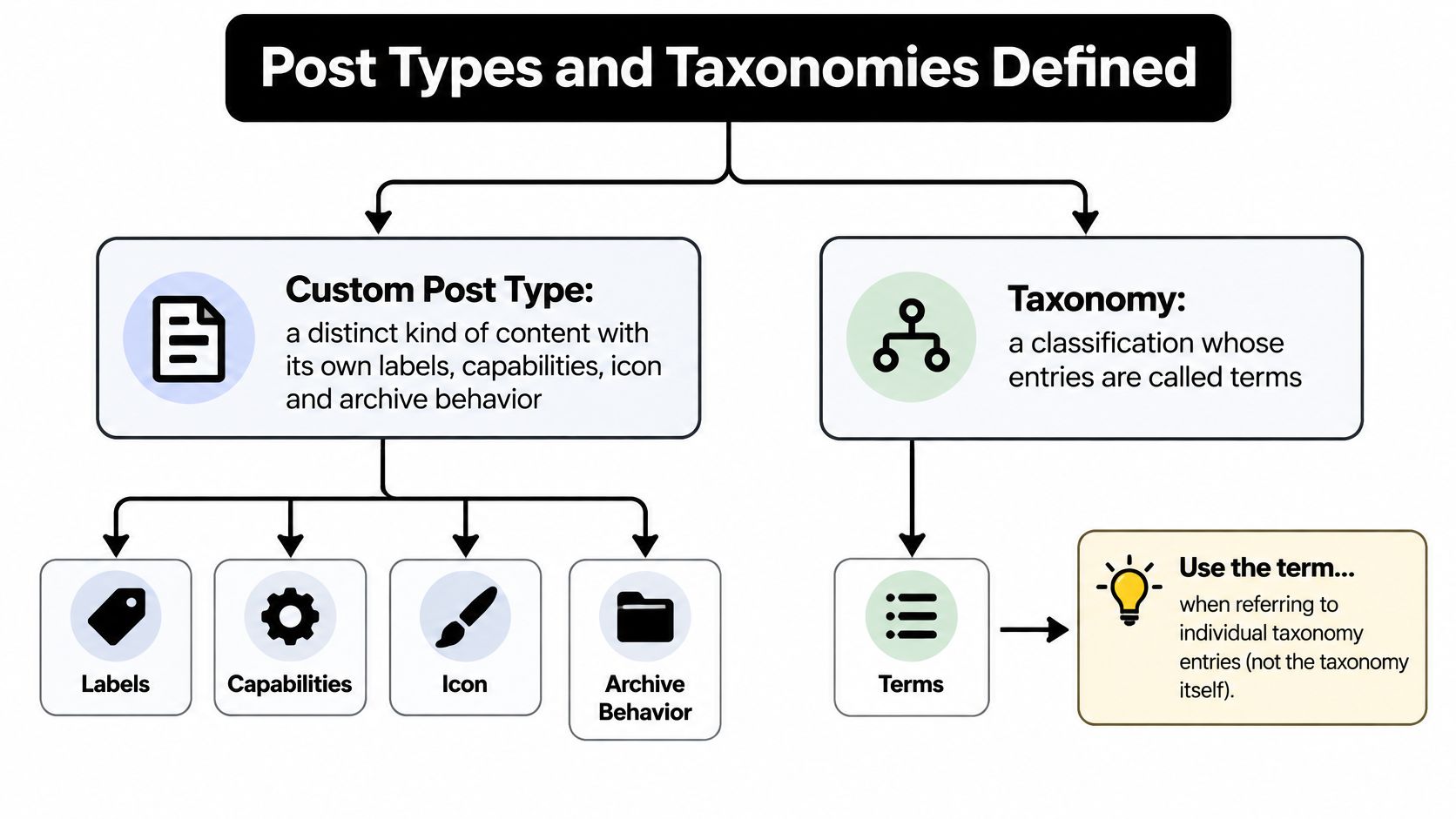
A custom post type is a distinct kind of content with its own labels, capabilities, icon, and archive behavior. The WordPress version history records that WordPress established custom post types as a major content-modeling capability with the release of WordPress 3.0, named “Thelonious,” on June 17, 2010, expanding the platform beyond posts and pages so administrators could define types for products, events, portfolios, staff profiles, or locations. Custom single-item templates were supported from version 3.0, while dedicated archive templates arrived in WordPress 3.1.
A taxonomy is a classification system, and its individual entries are called terms. Taxonomies arrived earlier. The WordPress taxonomies documentation states that version 2.3 introduced custom taxonomies in 2007, that Categories and Tags are the two defaults, and that custom taxonomies can contain an unlimited number of terms, subject to practical database, administration, and usability constraints. It also gives the cleanest distinction available. A post type answers “what kind of content is this?”, while a taxonomy answers “how is this content related or classified?”
A Worked Example With Region
Picture an Article post type with three taxonomies attached, Topic, Region, and Format. Ireland is a term inside the Region taxonomy. An article about rural broadband in Ireland is one Article item, filed under the term Ireland, perhaps also under a Topic term and a Format term such as Explainer. Clicking Ireland shows every article classified that way, regardless of topic.
Taxonomies come in two shapes, and picking the wrong one frustrates editors for years:
- Hierarchical taxonomies: Terms nest as parent and child, like Europe, then Ireland, then Dublin. Use this shape when readers drill down from broad to narrow. Categories work this way.
- Flat taxonomies: Terms sit side by side with no nesting, like a list of skills or tool names. Tags work this way, and so would a list containing free keyword tools, free drawing tools, and free map tools.
How the Two Connect
One taxonomy can attach to several post types. A Topic taxonomy can classify both articles and events, so a single term page can show everything you publish on that subject. That's something post meta can't do cleanly. If you type a topic into a free-text field on every item, you'll get spelling variants, no archive page, and no reliable filtering. Never repeat a shared dimension in post meta or body text when a taxonomy would hold it once.
Underneath, terms are stored in three parts, the term's identity, the term as it exists within a specific taxonomy, and the relationships connecting terms to posts. That separation is why the same name can mean different things in two taxonomies. Mercury could be a planet term in a Topic taxonomy and an element term in a Science taxonomy without any conflict.
Large vocabularies need an owner and naming rules. Unlimited terms doesn't mean unlimited value. Decide who can add terms, whether terms are singular or plural, and how you'll merge duplicates. Before you register anything, settle five design points for each structure:
- Name and slug: Short, stable, and unlikely to change, because slugs end up in URLs.
- Shape: Hierarchical or flat, chosen deliberately.
- Attached post types: Every type the taxonomy should classify.
- REST visibility: Whether the block editor and API need access.
- Archive intent: Whether visitors should browse by this term at all.
How to Register Post Types and Taxonomies in a Plugin
Registration takes about twenty lines of code, but where you put those lines matters more than the lines themselves. Follow these steps in order.
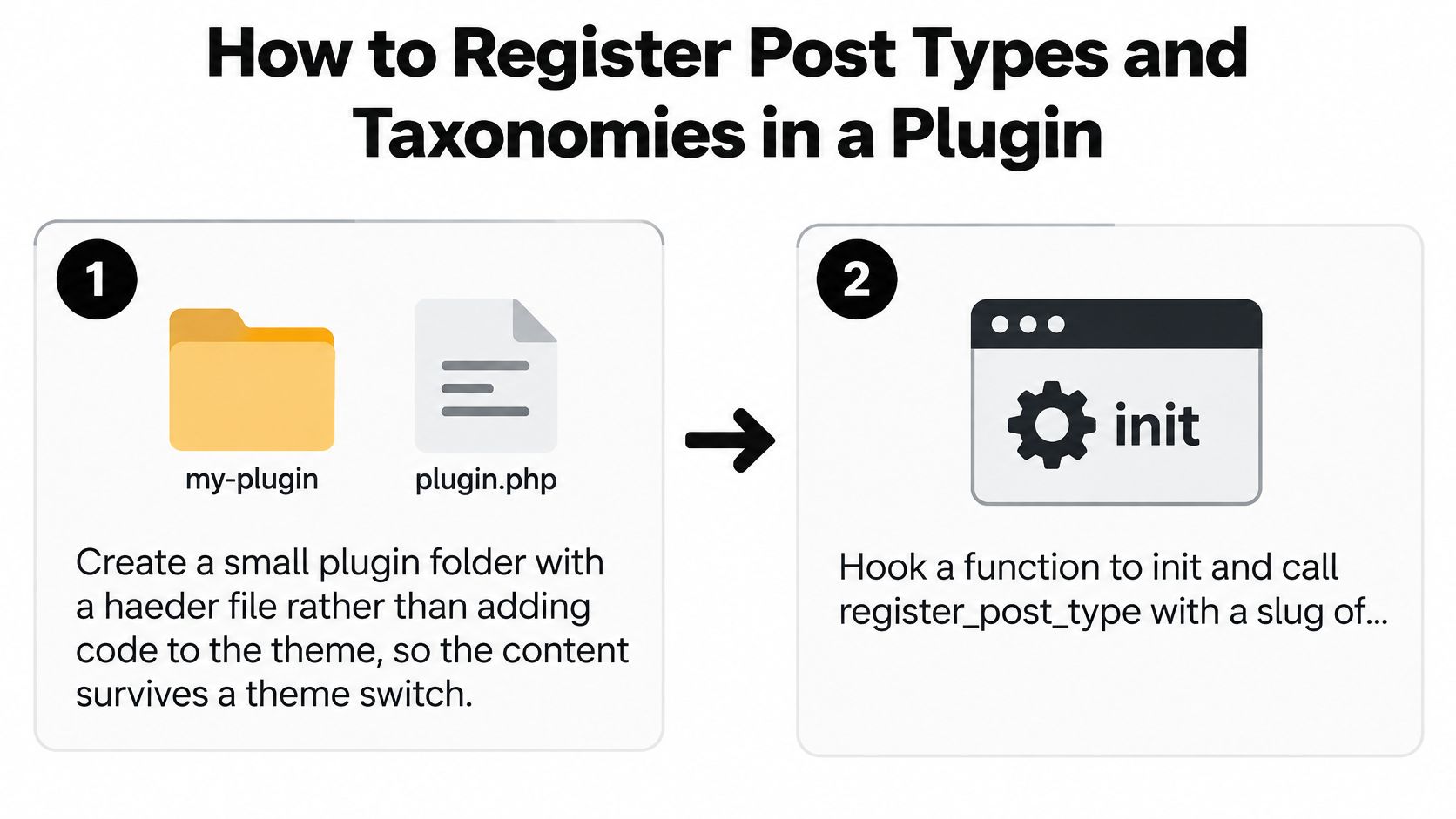
- Create a small plugin. Make a folder in your plugins directory with a header file rather than adding code to the theme, so the content survives a theme switch. Types registered in a theme vanish from the admin the moment you change designs, and your content becomes unreachable even though it still sits in the database.
- Hook a function to init and call register_post_type. Use a slug of 20 characters or fewer, and set labels, public, has_archive, supports, and show_in_rest to true so the block editor and REST API can use the type. A minimal call looks like
register_post_type( 'event', array( 'public' => true, 'has_archive' => true, 'show_in_rest' => true ) ); - Call register_taxonomy. Pass the taxonomy slug, the post type it attaches to, hierarchical as true or false, and show_in_rest, as in
register_taxonomy( 'event_topic', 'event', array( 'hierarchical' => true, 'show_in_rest' => true ) ); - Flush rewrite rules once. Visit Settings, then Permalinks, and save, or flush on plugin activation. Never flush on every page load, because rebuilding rewrite rules is expensive and slows the whole site.
- Check the admin menu, then query. Confirm the new type appears in the sidebar, add a test item, then retrieve it with WP_Query using the post_type argument.
Key Register Post Type Arguments
| Argument | What it controls | Typical value |
|---|---|---|
| labels | Admin menu and button text | array with name and singular_name |
| public | Front-end visibility and search | true |
| has_archive | Archive page at the type slug | true for listings |
| supports | Editor fields such as title, editor and thumbnail | title, editor, thumbnail |
| show_in_rest | Block editor and REST API access | true |
| rewrite | Permalink structure | array with slug |
| menu_icon | Admin sidebar icon | dashicon class name |
One surprise catches almost everyone. The WordPress developer guidance on working with custom post types explains that custom types share the core wp_posts table and are distinguished by the post_type column, and that registration alone does not add items to the homepage or standard archives. You need an explicit query or the pre_get_posts filter to merge a type into those listings. It also confirms that dedicated single and archive templates let you style each type without duplicating your general post template, and it recommends keeping ordinary articles as standard posts unless they need materially different fields, permissions, archives, or workflows.
Registering a type creates a container. It doesn't put that container anywhere visitors can see. Queries and templates do that work.
Worked Schemas for Events, Products and Staff
Abstract definitions only stick once you see a complete schema. These three scenarios cover most small sites, and each one pairs the structure with what a visitor sees.
Schema Lookup for Events, Products and Staff
| Post type | Fields | Taxonomies | Archive or template query |
|---|---|---|---|
| event | start date, venue, ticket link | event_topic (hierarchical) | upcoming events grouped by topic |
| product | price, SKU, stock | product_brand (flat), product_category (hierarchical) | single template showing price and related items |
| team_member | role, photo | department (hierarchical) | members grouped by department |
Events
A community group runs workshops. Each event is an item in an event post type, with start date, venue, and ticket link stored as custom fields from a fields plugin or meta boxes. A hierarchical event_topic taxonomy attaches to it, so Workshops can sit above Beginner and Advanced. The archive query pulls events with a start date today or later, sorted soonest first, and visitors see an upcoming events page they can narrow by topic. The mistake to avoid is creating a separate post type for workshops, talks, and socials. Those are terms. They share the same fields and template.
Products
Say a small shop sells downloadable resources. Each product carries price, SKU, and stock as fields, because those values are unique to that item and the single template needs to display and sort by them. A flat product_brand taxonomy and a hierarchical product_category taxonomy handle browsing, and the single template shows the price prominently with related items from the same category term beneath it. The mistake to avoid is stuffing price into a taxonomy. Terms group items. They don't hold values you'll calculate with.
A software directory works the same way. Each listing might cover free editing tools for videos, free zip tools, free daemon tools, free wireframe tools, free bi tools, free visualization tools, free writing tools, free crm tools, or free tools like photoshop. You might list HandBrake, which the HandBrake documentation describes as an open-source video transcoder for Linux, macOS, and Windows, noting that transcoding converts footage but doesn't replace a full timeline editor. Phrases like free pro tools download and pro tools free download are search intents, so they belong in your taxonomy and page copy, not in separate post types.
Staff
A clinic wants a team page. Each person is a team_member item with role and photo fields, and a hierarchical department taxonomy groups them. The archive loops through department terms and lists members under each heading, so visitors see the whole team organized the way the clinic works. The mistake to avoid is building one long page with everyone's bio typed into it. The first resignation turns a one minute edit into surgery on a shared page.
Notice the pattern across all three. Fields hold what's unique to an item. Taxonomies hold what's shared. The post type holds the item itself.
Plugins, Query Speed and Front-End Templates
You have two build routes, and the right one depends on who's maintaining the site. Code in your own plugin is precise, version controllable, and adds no dependency. A builder plugin trades that control for convenience. As a scale marker, the WordPress.org plugin directory listed more than 10,000 active installations for MB Custom Post Types & Custom Taxonomies as of July 2024, so it's a well travelled route. The catch is dependency. If that plugin is deactivated, your types disappear with it. Decide before launch, and document the choice where a future maintainer will find it.
Where Speed Problems Come From
Taxonomy filtering runs through tax_query, which adds joins to your SQL. One filter is cheap. Stacked filters across large term sets, combined with heavy meta queries for sorting by price or date, get expensive fast. Test archives with realistic term counts, not three demo items, and watch your database queries with a monitoring tool before you blame your host.
Use pre_get_posts when a type belongs in the homepage or main archive, and exclude a type from search when it's reference material visitors shouldn't stumble into. Both decisions are one small conditional each, and both shape how fast and how clean your main listings feel.
Templates That Do the Heavy Lifting
Create single-{post_type}.php and archive-{post_type}.php for type specific layouts, and taxonomy-{taxonomy}.php for term archives. A directory covering free tools online, free budgeting tools, free humanizer tools, and a free keyword tool needs term pages that explain themselves. Give every term page a clear heading, a short description, and a useful empty state that suggests related terms instead of showing a blank screen. Put taxonomy links in navigation only where readers really use them. A filter editors love can be clutter to everyone else.
Run these three speed checks before you call the templates done:
- Archive query count: Load the largest term archive and confirm the query count stays reasonable with filters applied.
- Meta sorting cost: Sort the biggest listing by a custom field and check the response time against unsorted loading.
- Search scope: Run a site search and confirm only the intended types appear, with no slow cross-type joins.
Confirm Your Structure Before You Launch
The most common launch failure looks like success. The type registers, it appears in the admin, your test item saves, and nobody notices that visitors can't reach it through archives, search, or feeds until a reader reports a dead end. The WordPress Learn lesson on custom taxonomies makes the underlying point clearly, a taxonomy needs settings such as show_in_rest and association with the intended post type to participate in modern editor and API workflows. Registration is the start of delivery, not the end of it.
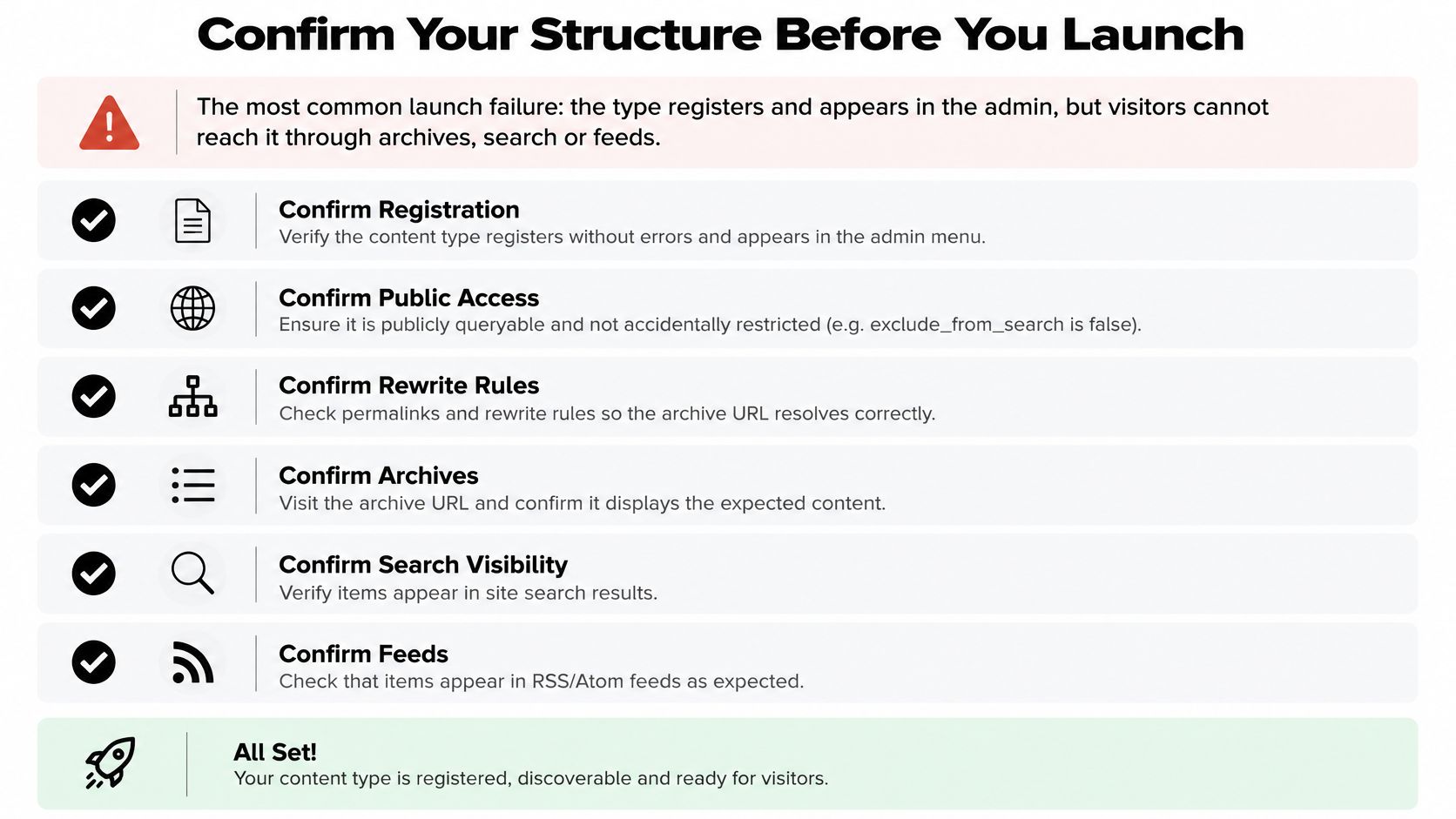
Run these checks in order, with one published test item per type:
- REST visibility: Confirm show_in_rest on each type and taxonomy, then load the REST endpoints for both and check your test item and its terms appear.
- Archive and term URLs: Open every archive and term page. Check headings, canonical links, and empty states on terms with no items yet.
- Search inclusion: Decide whether each type belongs in search results, then search for your test item's title and confirm the result matches your decision.
- RSS behavior: Check whether the type appears in your feed. On our site we offer a posts feed and a comments feed that readers can subscribe to in an RSS reader, and a new type shouldn't join or vanish from that feed by accident.
- Keyboard and mobile access: Tab through your filters, confirm every control has a clear label, and test navigation on a phone sized screen.
Classification is not navigation: A taxonomy can be essential for editors and still earn no place in your visitor facing menu. Promote only the terms readers browse by.
Migrations need extra care. Change existing posts to a new post type only after a full backup and a staging test, because the conversion touches permalinks and template selection at once. Add redirects from every old URL to its new home, then watch Google Search Console for crawl errors over the following weeks. A theme switch, at least, won't hurt you here, since types registered in a plugin stay registered whatever design you activate.
Publish one test item per type, run every check above against it, and fix what fails while the audience is still just you. Only then launch, or change a live structure. Thirty minutes of checking channels beats a weekend of redirect repairs.
We publish practical WordPress guidance like this at Read More Info, covering content structure, feeds, and the everyday decisions that keep a small site tidy as it grows. If you're planning your own post types or cleaning up a structure that outgrew its categories, visit Read More Info and browse the latest articles, or subscribe through our feeds so new guides reach your reader automatically.