WordPress Create RSS Feed: How to Set Up Feeds in 2026
Learn how a WordPress create RSS feed works: default feeds, custom post type feeds, and custom endpoints that stay valid in readers.
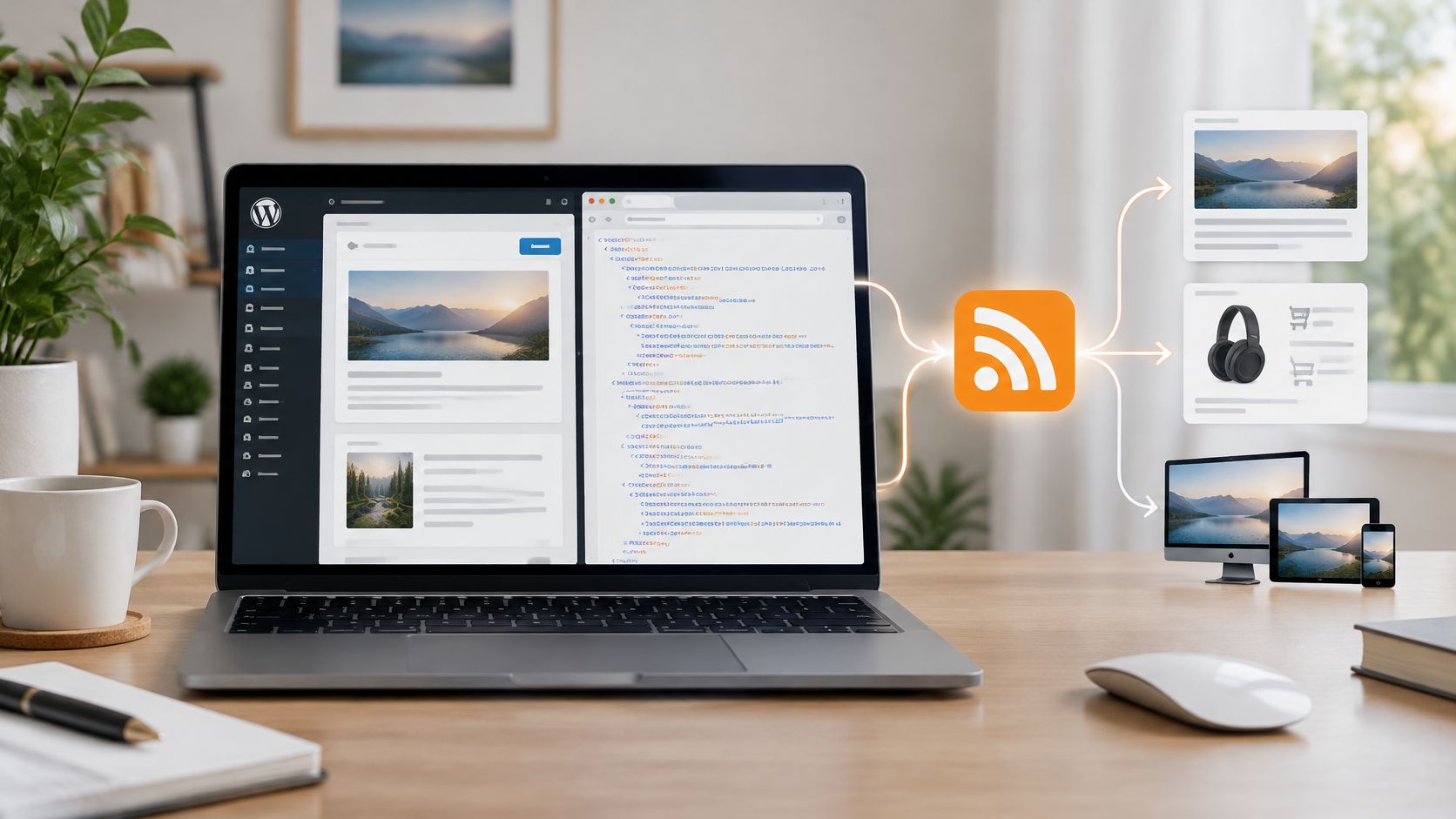
A newsletter tool asks for your feed URL. A reader app rejects the one you paste. An automation that pulled posts last month now returns nothing. You open /feed/, see XML, and assume the job is done. A feed can display in a browser and still fail downstream parsers. When you create an RSS feed in WordPress, the work is proving that readers, aggregators, and automations can parse, trust, and refresh what WordPress already outputs.
Feed URLs WordPress Already Creates
WordPress already generates your feeds. For most sites, you don't build anything, you find the right URL and check it. That brevity hides a long history, since Netscape released RSS 0.90 on March 15, 1999, and Dave Winer's RSS 2.0 arrived in September 2002 as "Really Simple Syndication", according to the history of RSS. Compatibility, not novelty, is the point.
Built-in WordPress feed URLs and what they contain
| Feed | URL pattern | Contains | Typical use |
|---|---|---|---|
| Site posts | /feed/ | Latest published posts | Subscribers and aggregators |
| Site comments | /comments/feed/ | Latest approved comments | Following site-wide discussion |
| Atom 1.0 | /feed/atom/ | Latest posts in Atom format | Readers that require Atom |
| RSS 0.92 | /feed/rss/ | Latest posts in RSS 0.92 | Legacy consumers |
| RSS 1.0 (RDF) | /feed/rdf/ | Latest posts in RDF format | Legacy RDF consumers |
| Category | /category/news/feed/ | Posts in one category | Topic-specific subscriptions |
| Tag | /tag/wordpress/feed/ | Posts with one tag | Narrow topical follows |
| Author | /author/jane/feed/ | Posts by one author | Following a single writer |
| Search | /search/keyword/feed/ | Results for one search term | Monitoring a topic |
| Single post comments | /post-slug/feed/ | Comments on one post | Monitoring one discussion |
Start with /feed/. Give someone a category, tag, or author feed only when they want that slice, which pairs naturally with a well structured WordPress post category page. Use /comments/feed/ for discussion, not posts. Keep Atom and RSS 0.92 for older consumers that ask for them by name.
Practical rule: Verify /feed/ in a private window first, and create narrower feeds only when a named reader or workflow needs them.
How to Check and Expose Your Site Feed
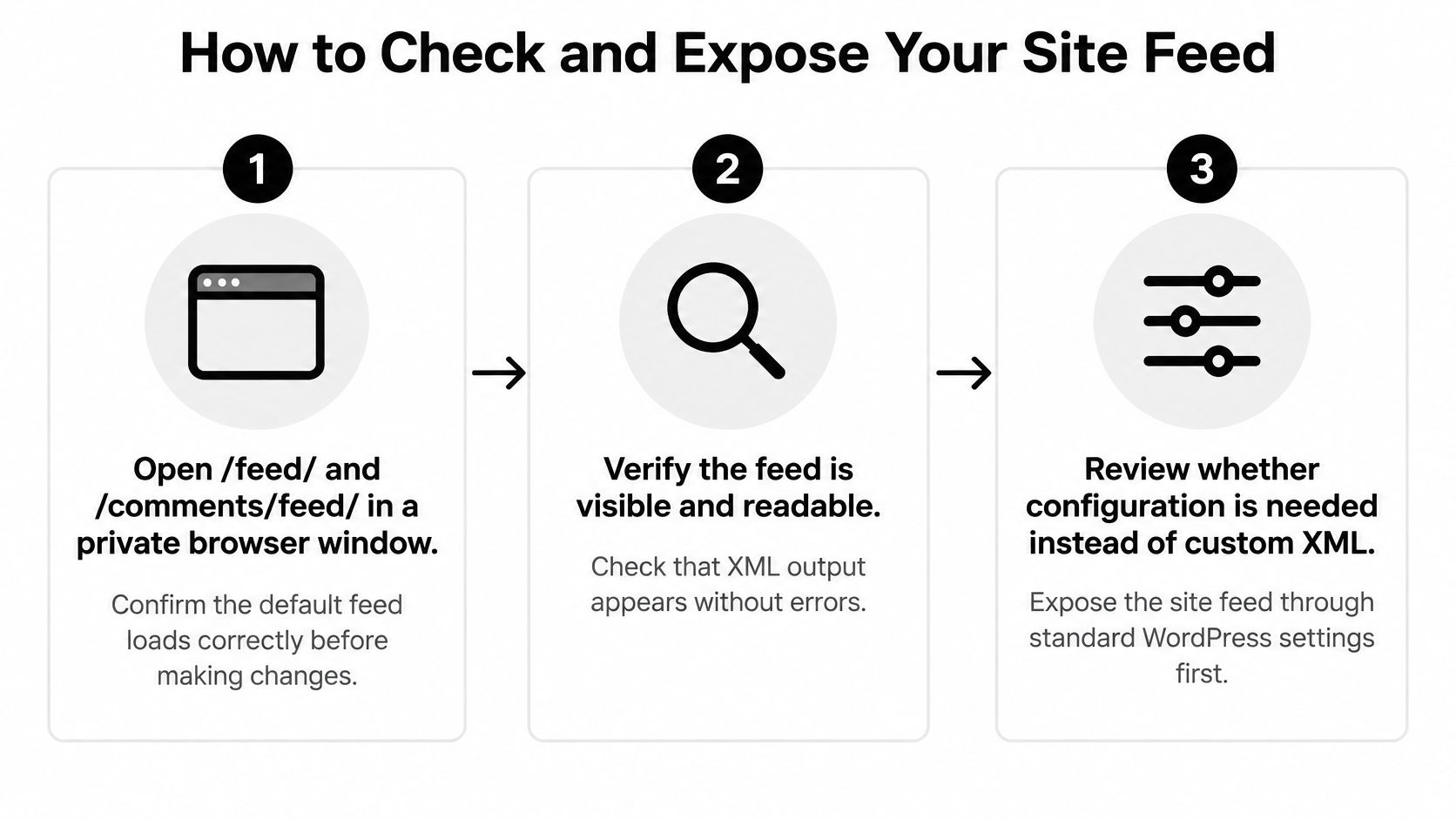
The default feed usually needs configuration and verification, not custom XML. The WordPress Advanced Administration Handbook feed guide documents both post and comment RSS 2.0 endpoints, so your job is to confirm they work for anonymous visitors. Work through these checks in order.
Six checks before you link the feed
- Open both URLs privately. Load /feed/ and /comments/feed/ in a private window. You should get XML with an RSS content type, not a login screen or HTML page.
- Set Reading options first. In Settings, Reading, choose how many items appear and whether subscribers get full text or a summary. Test after you set this, because changing it later changes what downstream tools receive.
- Read the channel block. Title, site link, description, and language should match your live site. A wrong domain here usually means an old URL survived a migration.
- Inspect three items. Check titles, permalinks, publication dates, and descriptions. Open an item with quotes, special characters, or embedded media, because those expose escaping problems first.
- Publish and watch. Post a new public test entry and confirm it appears within a few minutes. If it doesn't, clear caches before you touch any code. That habit fits the broader workflow in a WordPress content management system tutorial.
- Expose and validate. Add the feed to a menu, footer, or subscription block using bloginfo('rss2_url') rather than a hard-coded domain. Then submit the URL to the W3C Feed Validation Service.
Treat validation as a release gate. One malformed item can make strict aggregators reject the whole document, even when nine items look fine.
The feed is ready to link only when the validator passes, or every warning is reviewed, and a brand new post appears in it.
Adding Feeds for Custom Post Types
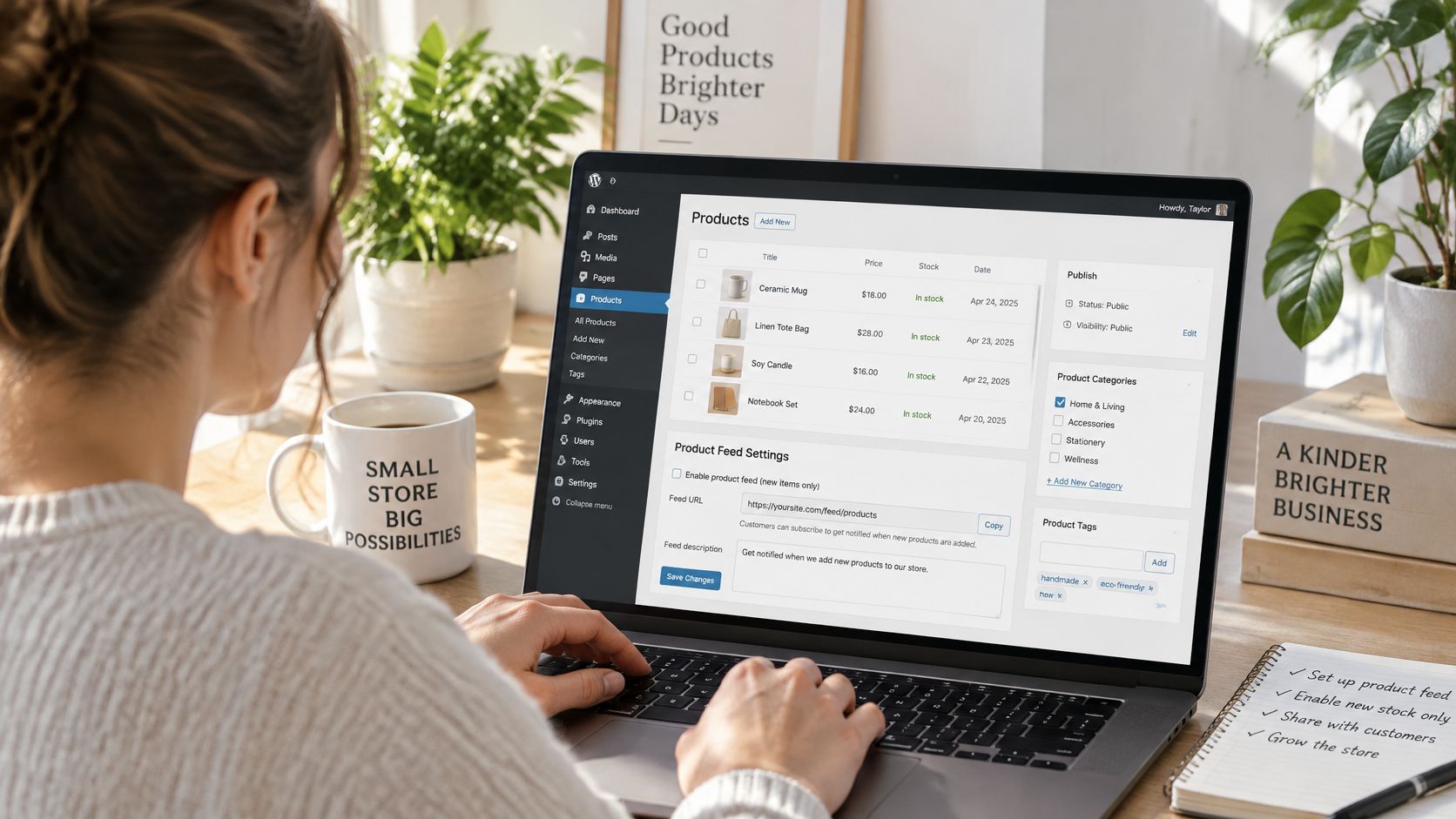
Say a small store wants a products feed so subscribers tracking new stock don't receive every blog post. That is the right reason to add a feed. The post type needs public visibility and an archive before WordPress gives you a clean feed base to test.
From archive slug to working feed
- Confirm registration. The type should set public to true and has_archive to true, with a slug such as products, as covered when you set up custom post types and taxonomies.
- Flush rewrites once. Open Settings, Permalinks, and save without changes. WordPress rebuilds its rewrite rules, which often fixes a 404 instantly.
- Test the pretty URL. Open /products/feed/ privately. If it returns a 404, try /?post_type=product&feed=rss2 to separate a rewrite problem from a query problem.
- Publish one product. Confirm it appears in the products feed and not in /feed/. Cross-contamination at this stage means your query is too broad.
- Decide on merging deliberately. If products belong in the main feed, add a request filter that checks is_feed() and adds the custom type alongside post. Leave the rest of the default query alone.
- Test term feeds. For attached taxonomies, check a URL such as /genre/jazz/feed/ before you publish it anywhere.
I would keep a custom type separate when subscribers follow it for different reasons than your blog. Merge only when one reader needs everything in a single stream, because merged feeds are harder to unsubscribe from selectively and harder to debug when item counts look wrong.
Building a Custom Feed Endpoint and Template
Use hooks first. Build a custom endpoint only when the output needs its own URL or a different structure. The WordPress RSS 2.0 template file exposes rss2_head and rss2_item, so you can add namespaces, media metadata, or tracking fields without editing core. Read that template as your reference. Don't modify it.
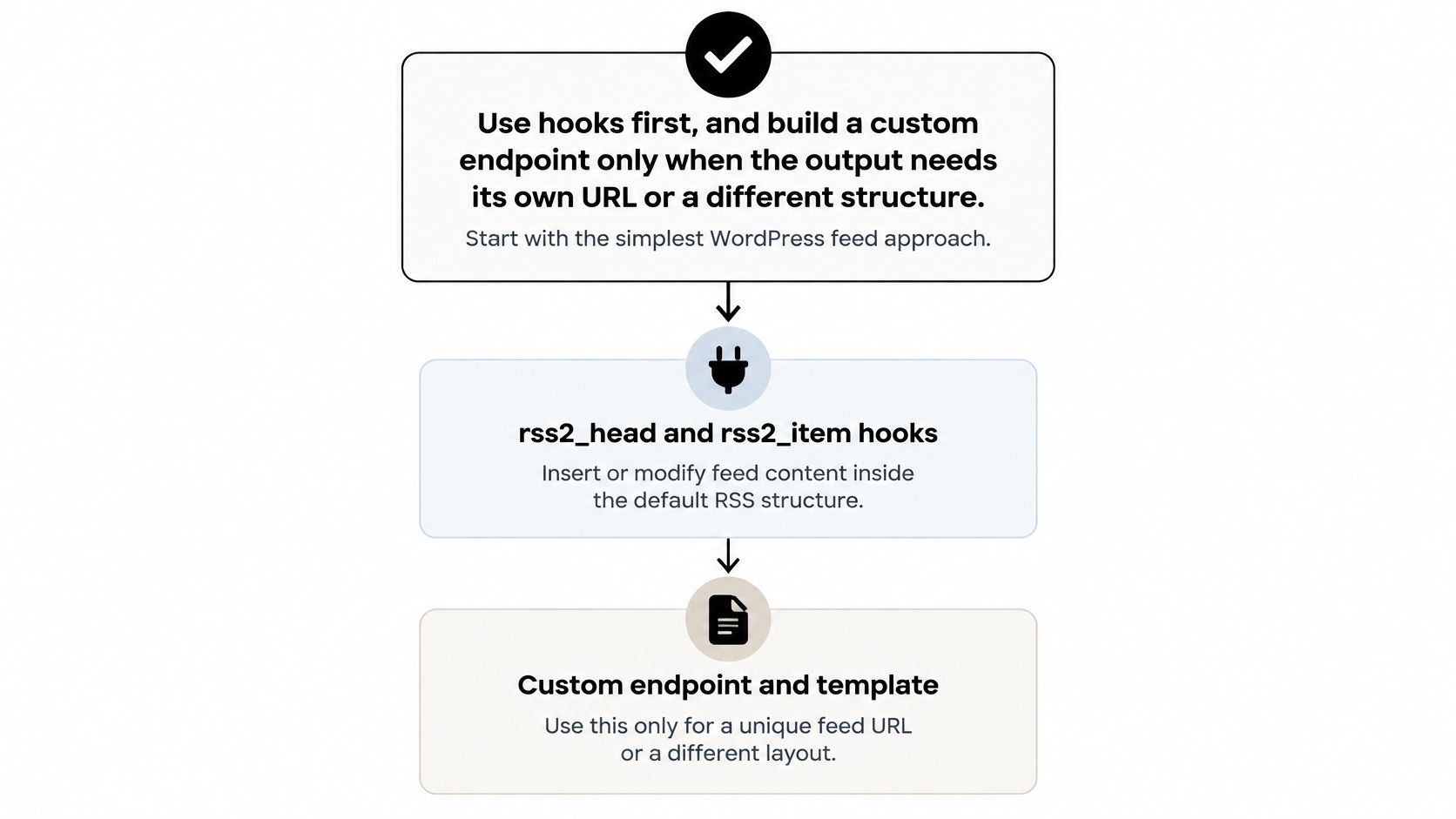
Hook-first build sequence
- Add channel data once. Emit your namespace and extra channel elements through rss2_head, once per feed, not per item.
- Register the endpoint. Use add_feed('newsletter', callback) and flush permalinks once on plugin activation. Flushing on every request wastes resources and masks real rewrite bugs.
- Send headers before output. In the callback, send Content-Type application/rss+xml with charset UTF-8 before anything prints. Then run the default query, or a narrower one you've documented an editorial reason for.
- Add item fields conditionally. Through rss2_item, output custom data only when a value exists. Escape text for XML and use absolute HTTPS URLs for every image and enclosure.
- Keep identity stable. Don't change GUIDs or permalinks between requests. Readers treat a new GUID as a new article, so instability creates duplicate entries for every subscriber.
- Test hostile content. Run an empty field, a very long field, an ampersand, a quotation mark, and a newly published post. Then validate and open the result in two different readers.
Keep the default query intact unless an editorial rule demands otherwise. Altering it casually omits updates or duplicates entries, and both failures stay invisible in your browser. Core already provides helpers for self-links, build dates, categories, and enclosures, so custom serialization is rarely worth the maintenance.
Diagnose Feeds That Load but Break Downstream
Browsers forgive. Parsers don't. A newsletter platform, feed reader, or automation service can reject a feed that looks perfectly readable to you, because it parses XML strictly and checks headers your browser ignores. The WP Engine guide to fixing WordPress RSS errors covers the usual culprits, from malformed XML to stale caches and PHP notices corrupting output. Match your symptom below before changing anything.
Feed symptoms, likely causes and fixes
| Symptom | Likely cause | Fix |
|---|---|---|
| PHP notice or blank space before the XML | Theme or plugin output before the declaration | Disable plugins one at a time and remove stray whitespace or BOM from files |
| Content type is text/html | Wrong header or HTML output in the template | Send application/rss+xml before any output |
| Validator reports an error on one item | Unescaped ampersand or invalid character in a field | Escape text fields and retest with a post containing special characters |
| New posts missing for hours | Page, plugin or CDN cache serving old XML | Purge caches and exclude feed URLs from caching |
| Links point to an old domain | URL settings left over from migration | Update Site and WordPress addresses, then search and replace old URLs |
| Images fail in readers | Relative media URLs | Use absolute HTTPS URLs for every media item |
Fixing without creating a second problem
- Test on a fresh public post: Every fix gets verified against newly published content, not yesterday's cached items.
- Isolate one variable: Disable themes and plugins one at a time when output appears before the XML declaration. Bulk deactivation tells you nothing about which one caused it.
- Purge every cache layer: Clear page, plugin, and CDN caches, and exclude feed URLs where your host allows it. A feed that validates but never shows new posts is usually a caching problem, not a template problem.
- Fix migration leftovers: Update the Site and WordPress addresses after any move, then search for the old domain inside the feed itself.
- Respect single characters: One unescaped ampersand can invalidate the entire document for strict aggregators.
Small publishers often lose subscribers without notice. Read More Information publishes articles on RSS and feed readers, site search, responsive design, and web basics, and any site like it can have a healthy homepage while its digest stops sending.
The repeatable test routine
- Request /feed/ and /comments/feed/ and confirm a 200 response with XML content.
- Run the W3C validator on the main feed and every custom feed you publish.
- Publish a public test post and confirm it appears in your browser and in a second feed reader.
- Check that each custom post type feed returns only its own items.
- After any site, plugin, or theme update, repeat steps 1 and 3.
Run this before launch, after each template or plugin change, and whenever a digest stops receiving items. Keep /feed/ as your primary subscription URL, and add a narrower feed only when a named reader needs it.
Verify the Feed Before Relying on It
A feed can render as a page of XML in Chrome and still arrive empty in a subscriber's reader. That gap is the one worth testing for. Verification means subscribing to the public URL in a reader you do not normally use, then publishing a real post and watching what that reader receives. The same sequence applies to creating posts in WordPress, because the feed only proves itself when publishing pushes through it.
Checks that separate a browser view from a working feed
- Use a second reader: Add the exact URL your audience gets to a reader with no existing cache of the feed. Confirm the new post appears there within its normal polling window, not only in the browser tab you already refreshed.
- Confirm item dates: Each item should carry the publication date, not the last-modified date. A feed full of today's timestamps after a theme update can push old posts to the top of a digest.
- Check absolute URLs: Item links, GUIDs, image URLs and enclosure paths should use the live domain over HTTPS. Anything pointing at a staging host, localhost or an old domain will break once a reader or automation consumes it.
- Inspect the item body: Look for raw shortcodes, unresolved block comments or missing featured images in the feed content. A feed can validate while still delivering markup that renders badly in a reader.
- Clear every cache: Purge page, plugin and CDN caches, then repeat the reader check in a private window. A feed that validates but never shows new items is usually cached at one of those layers.
- Test the handoff: If a newsletter or automation consumes the feed, send one test post through that path. Confirm the item title, link and date arrive as expected before you schedule a real campaign.
One failing check is enough to hold the feed back. A missing date or a staging URL is easier to fix before a newsletter imports a broken item than after subscribers see it. If the feed validates but only fails in a second reader, suspect caching or content negotiation before rewriting the template.
Finish with one last anonymous check after clearing caches. If a new post appears in two readers with correct dates and absolute URLs, you're relying on evidence, not hope.
If you're setting up feeds, categories, or custom post types and want plain, practical WordPress guidance without the fluff, visit Read More Info for step-by-step articles on RSS, site setup, and everyday publishing tasks. Subscribe through the site feed once yours validates, and use the same test routine after every update to keep your own syndication working.