How to Get Premium WordPress Themes for Free Safely
Learn how to get premium WordPress themes for free from official sources, GPL releases, and giveaways, and skip nulled downloads.
The usual advice to search for a premium theme name followed by “free download” is a bad way to choose software that runs on your server. A polished demo doesn't tell you who changed the ZIP, whether updates will arrive, or what happens when the next WordPress release breaks a template. Visual polish is the cheap part. Verifiable maintenance is what matters.
To get premium WordPress themes for free, start with legitimate free editions, documented licensing, and vendor-issued promotions. You can build a professional-looking blog without buying a commercial theme. You can't safely replace a developer relationship with an anonymous download promising every paid feature.
Legal Routes to a Premium-Looking Theme
A free theme costs less than a premium subscription only when you can verify its author, license, and update channel. Otherwise, malware cleanup and lost search rankings can wipe out the savings. A polished design is easy to find; dependable maintenance is the harder part.
The WordPress.org theme directory is a practical starting point for blog designs with readable typography, useful archives, and responsive templates. Its themes are reviewed for inclusion, and dashboard updates provide a clear route for maintenance. A directory theme may not match a commercial demo, so check which layouts and controls the free version includes.
Legitimate free theme routes versus a nulled download
| Route | Where to get it | License and updates | Best fit | Avoid when |
|---|---|---|---|---|
| Official directory theme | WordPress.org theme directory | GPL-compatible, reviewed, updates in the dashboard | Blog, brochure, or prototype | You need a specific paid layout that the free theme doesn't include |
| Official free or freemium edition | Theme developer site | Free core, paid add-ons, vendor updates | Sites that may upgrade later | The free tier hides templates you already depend on |
| Time-limited trial | Known marketplace account | Trial terms, access ends on a stated date | Design experiments | You need the theme after the trial clock stops |
| Vendor giveaway | Vendor email or official promotion page | License key from the vendor | A licensed install covered by the promotion | The key comes from a repost, coupon forum, or unknown ZIP |
| Documented GPL copy | Developer or clearly named GPL distributor | GPL use and modification, updates only if that source maintains them | Learning and low-risk sites | The package removes credits or bundles extra plugins you didn't choose |
| Nulled or unlocked ZIP | Random blogs, file lockers, shared drives | Unauthorized unlocking, no trustworthy updates | Never | Always; treat it as compromised |
What the license actually buys you
A directory theme gives you a usable theme package, not access to a developer's separate pro bundle. Freemium developers may charge for advanced headers, shop controls, or extra templates. Confirm that the free edition includes the layout your blog needs, rather than relying on a paid demo.
A trial provides temporary access under its stated terms. A giveaway is legitimate when the vendor issues the entitlement and explains whether updates continue. A shared account or reposted download does not establish that entitlement.
GPL rights and commercial services aren't the same thing. A documented GPL distribution can permit use, modification, and redistribution under its license. It may not include the original vendor's support, account access, trademarks, or update service. Redistribution alone doesn't prove piracy, and a GPL label doesn't prove that a package is authentic or clean.
For a personal blog, choose a maintained directory theme that meets your needs. For a short prototype, an official free edition or trial may be enough. If the site earns money, settle on an update route before building around the theme. Changes to templates or styling can affect archives, navigation, and mobile layouts when the theme updates, so a dependable update channel matters more than a close match to a demo.
How to Check a Theme Before You Trust It
For any ZIP obtained outside the dashboard, record its source and save a checksum before installation. Keep the download location, theme version, license file, and archive together. A SHA-256 hash lets you compare copies later, but it doesn't certify safety: a malicious archive has a hash too.
Scan both the archive and its extracted files. Then inspect the PHP, or have a developer review it, using the WordPress theme review requirements as the benchmark for code handling, consent, licensing, and plugin behavior.
Use this checklist to preserve the evidence behind your decision.
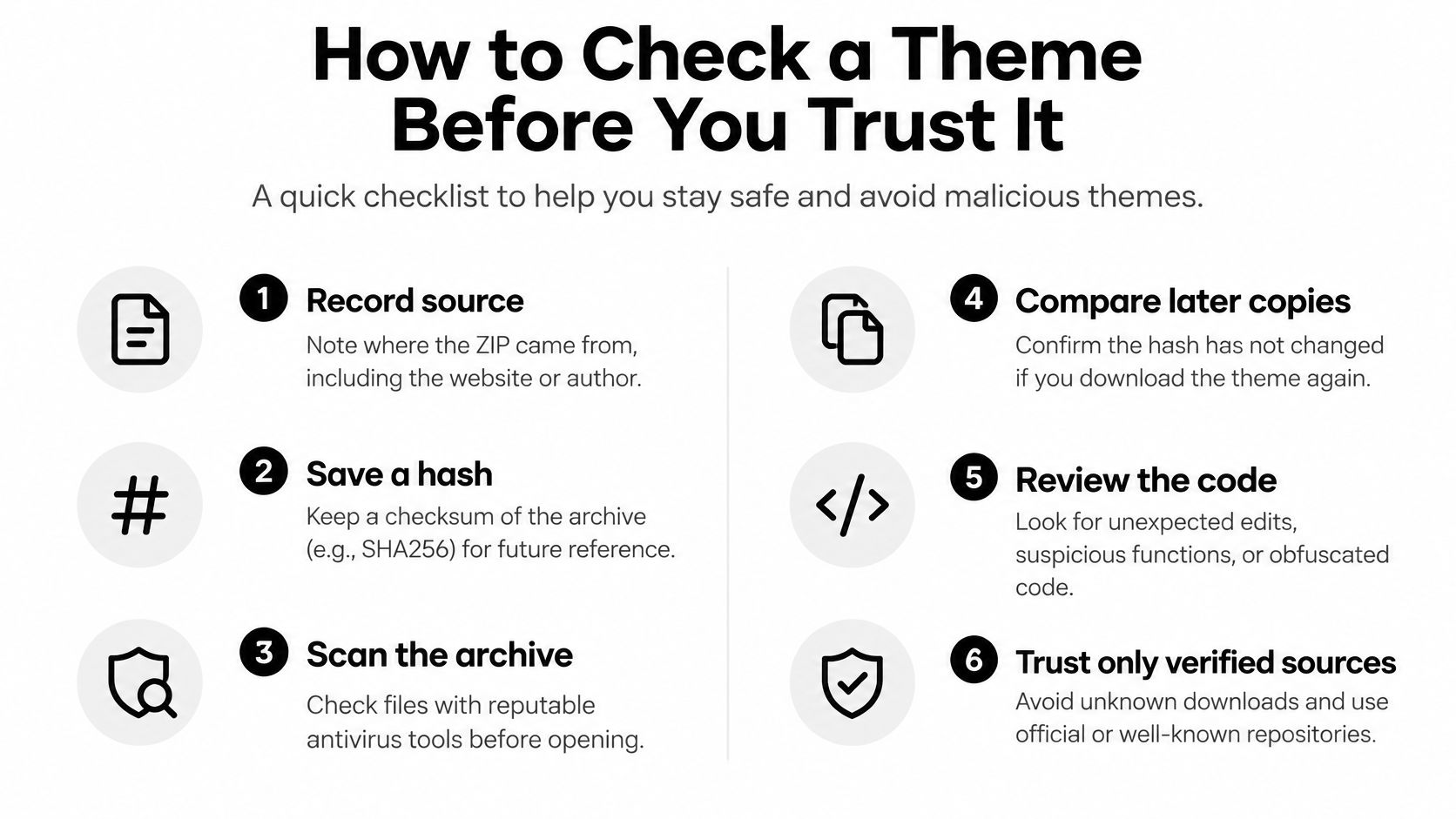
Theme legitimacy checks
| Check | Pass | Stop |
|---|---|---|
| Author and license | Named developer and visible GPL or freemium terms | No author, or a license contradicting the download page |
| Download host | WordPress.org or the vendor domain | File locker, random blog, or shared drive |
| Update channel | Dashboard updates or a public changelog | Lifetime unlocked bundle with no updater |
| PHP contents | No unexplained eval chains, encoded payloads, or hidden admin users | Obfuscated code or unexpected remote calls |
| Behavior on staging | Search, feeds, comments, and mobile layout work | Injected links, spam, or administrators you didn't create |
| Extras | Tracking off by default, no forced plugin installs | Auto-installed plugins or remote scripts without consent |
Read suspicious code in context
Search PHP files for base64_decode, eval, gzinflate, shell execution, unexpected wp_remote calls, and code that creates users. Inspect hard-coded external scripts and unfamiliar domains. A function name alone isn't proof of malware, but an encoded payload that executes hidden instructions is a reason to stop.
On a disposable staging copy, enable PHP and WordPress error logging without displaying sensitive errors publicly. Open the browser's Network panel and compare logged-in and logged-out requests. Look for unexplained callbacks, injected assets, redirects, and changes to administrator accounts.
The code should sanitize and validate input before saving it, escape untrusted output, and protect privileged actions with capability checks and nonces. Scripts and styles should be enqueued through WordPress. Tracking should require opt-in, bundled assets need compatible licenses, and the theme shouldn't install plugins automatically.
Practical rule: An unexplained security-sensitive behavior is a failed check, not something to overlook because the homepage looks right.
Don't assume a GPL label settles every credit, trademark, or bundled-asset obligation. Check the actual terms rather than stripping notices indiscriminately. A malware scanner also can't certify the absence of every backdoor.
Keep custom template changes out of the parent theme, keep WordPress and plugins current, and remove unused themes while retaining a deliberate recovery option. Store a backup off the server. Your final decision should be pass, reject, or obtain qualified review, not “probably fine.”
How to Install a Free Theme Safely
Install a candidate as a controlled change, not a live design experiment. The WordPress hardening guide tells administrators to avoid untrusted theme sources and prefer WordPress.org or well-known companies. Directory review provides a basic quality and security checkpoint, but it doesn't replace testing your own content.
The dashboard path is straightforward; production activation is the part that deserves restraint.
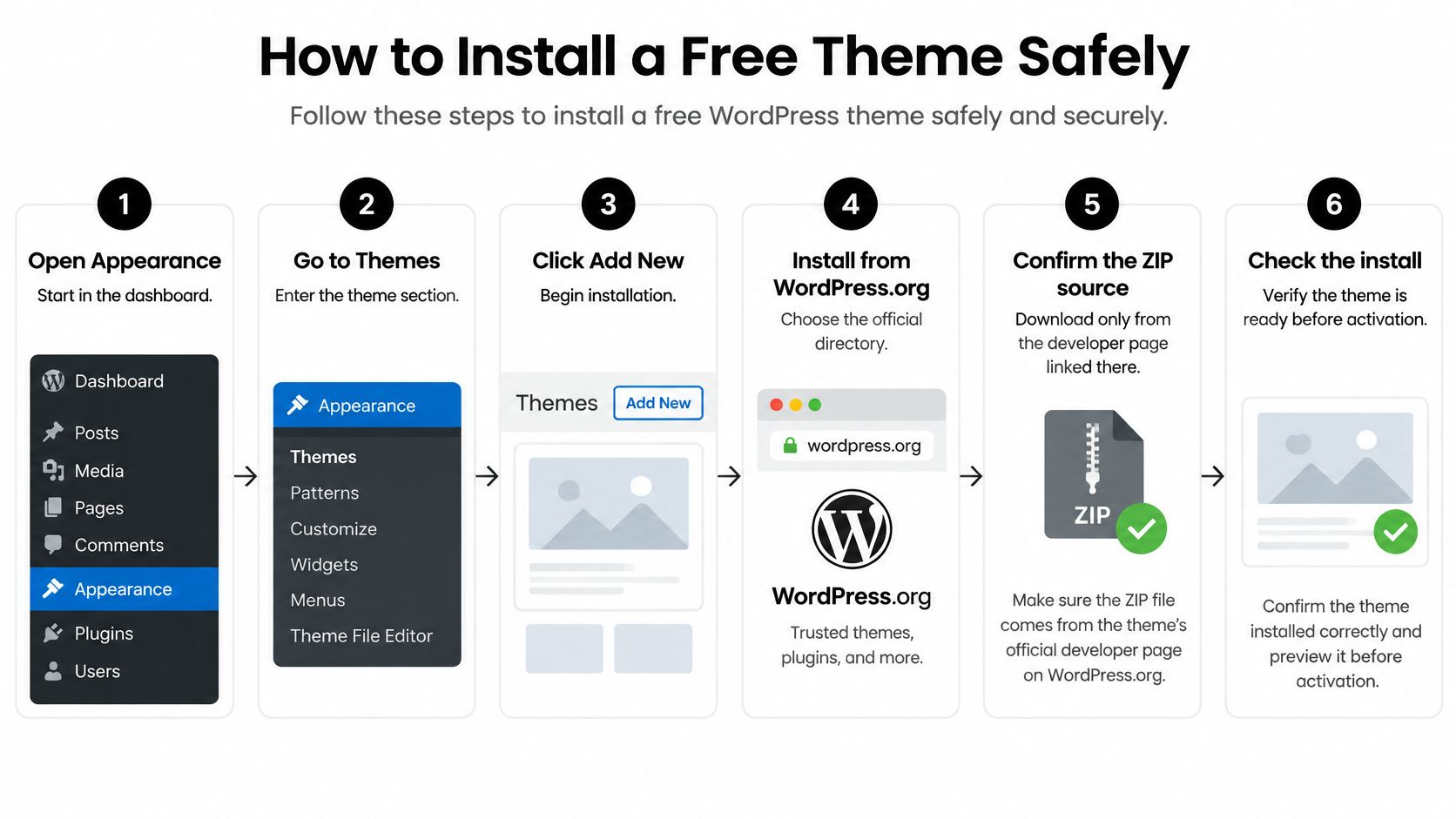
Follow the installation path in order
Start with the official listing. Open Appearance → Themes → Add New and choose a directory theme. If you need the developer's ZIP, follow the developer information associated with that listing rather than a search advertisement or mirrored download. This reduces the chance of installing a look-alike package.
Confirm the author and license. Read the theme details and included license text before installing. Match the developer identity to the download source. A familiar theme name isn't enough when someone else controls the archive.
Back up the complete site and create staging. Include the database, uploads, plugins, themes, and configuration. Confirm how you'll restore them, then protect the staging copy from public indexing and unnecessary access. A backup you can't restore isn't a usable rollback plan.
Install and preview away from production. Upload the checked ZIP or install the directory package on staging. Activate it there so you can inspect actual behavior, not just the preview image. Don't import an entire demo site unless you understand which content and settings it will replace.
Load representative publishing content. Test the homepage, a long article, archives, menus, widgets, a successful search, and a search with no matches. Open the posts feed and comments feed, submit a test comment, and check a phone-width layout. Include headings, captions, lists, long titles, and keyboard navigation; Theme Unit Test sample content can expose cases your current posts don't contain.
Read maintenance and compatibility information. Inspect the changelog, update history, and Tested up to field against your installed WordPress version. Check essential plugin interactions, especially forms and navigation. A compatibility label is useful evidence, but not a substitute for running the combination you use.
Activate only with recovery ready. Keep access to your host's file manager or another recovery method in case the dashboard becomes unavailable. After activation, verify the public pages and clear relevant caches. Remove unnecessary theme packages once the new installation is stable, without discarding your planned fallback.
Test the boring pages
A demo homepage can hide the failures readers encounter first. Search results may omit titles, a mobile menu may trap keyboard focus, or an empty search may show a blank area instead of useful guidance.
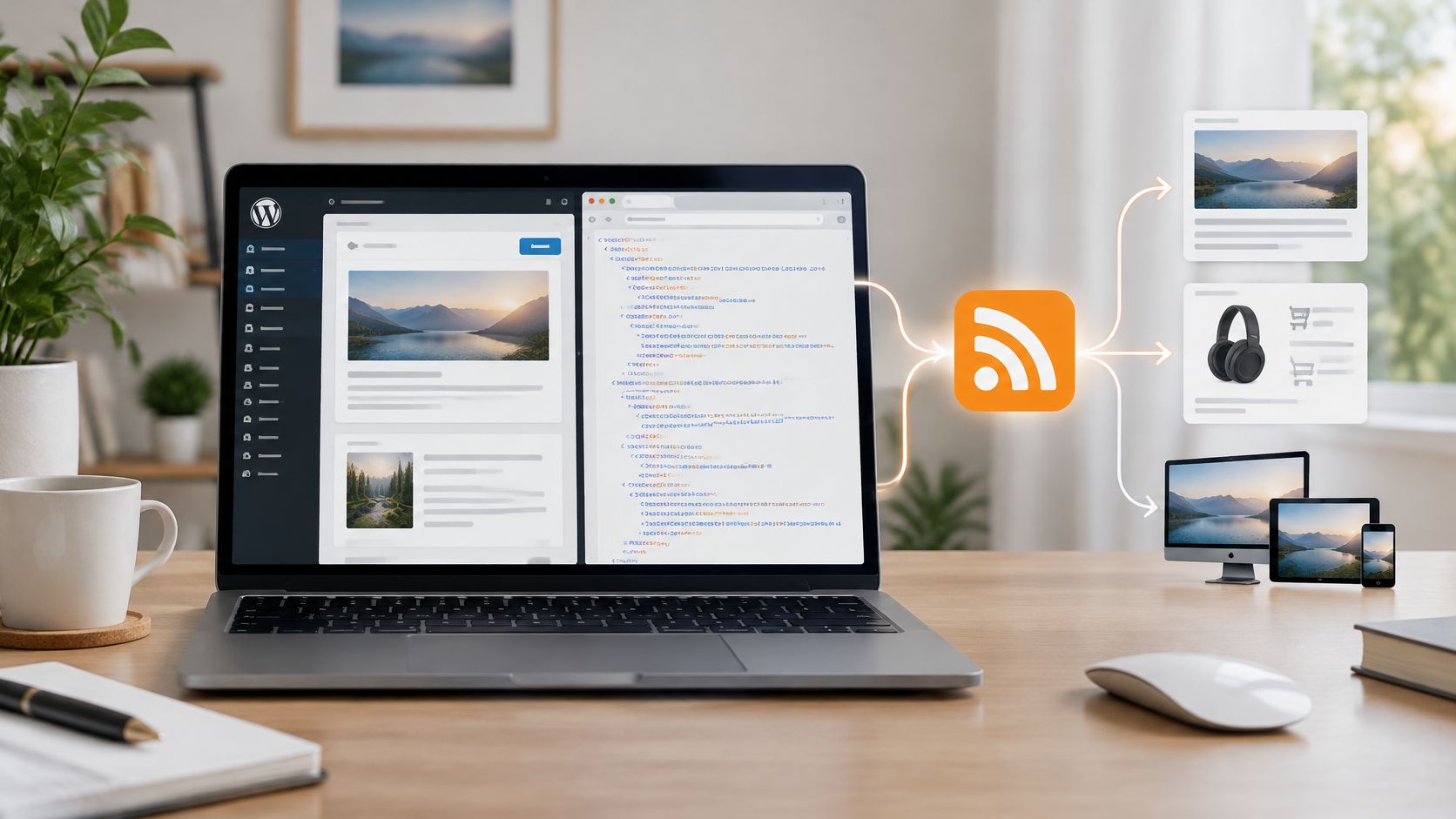
Both RSS feeds deserve a real check. Open them in a feed reader or inspect their output for errors and accidental markup. A visual redesign shouldn't interrupt subscribers.
Cracked commercial packages can include obfuscated PHP, injected administrators, SEO spam, or remote callbacks. Download counts and ratings don't neutralize those risks, and there's no reliable universal malware-avoidance success rate based on ratings alone. Keep this installation checklist with your site notes so the next candidate receives the same scrutiny.
Child Themes That Make a Free Design Look Custom
Customization is the practical alternative to downloading a nulled pro skin. Start with a maintained parent theme and keep your custom layer small. As a WordPress publication, Read More Info is a useful case for a reading-first design rather than a marketplace-style showcase.
Keep the working files separate from the parent package.
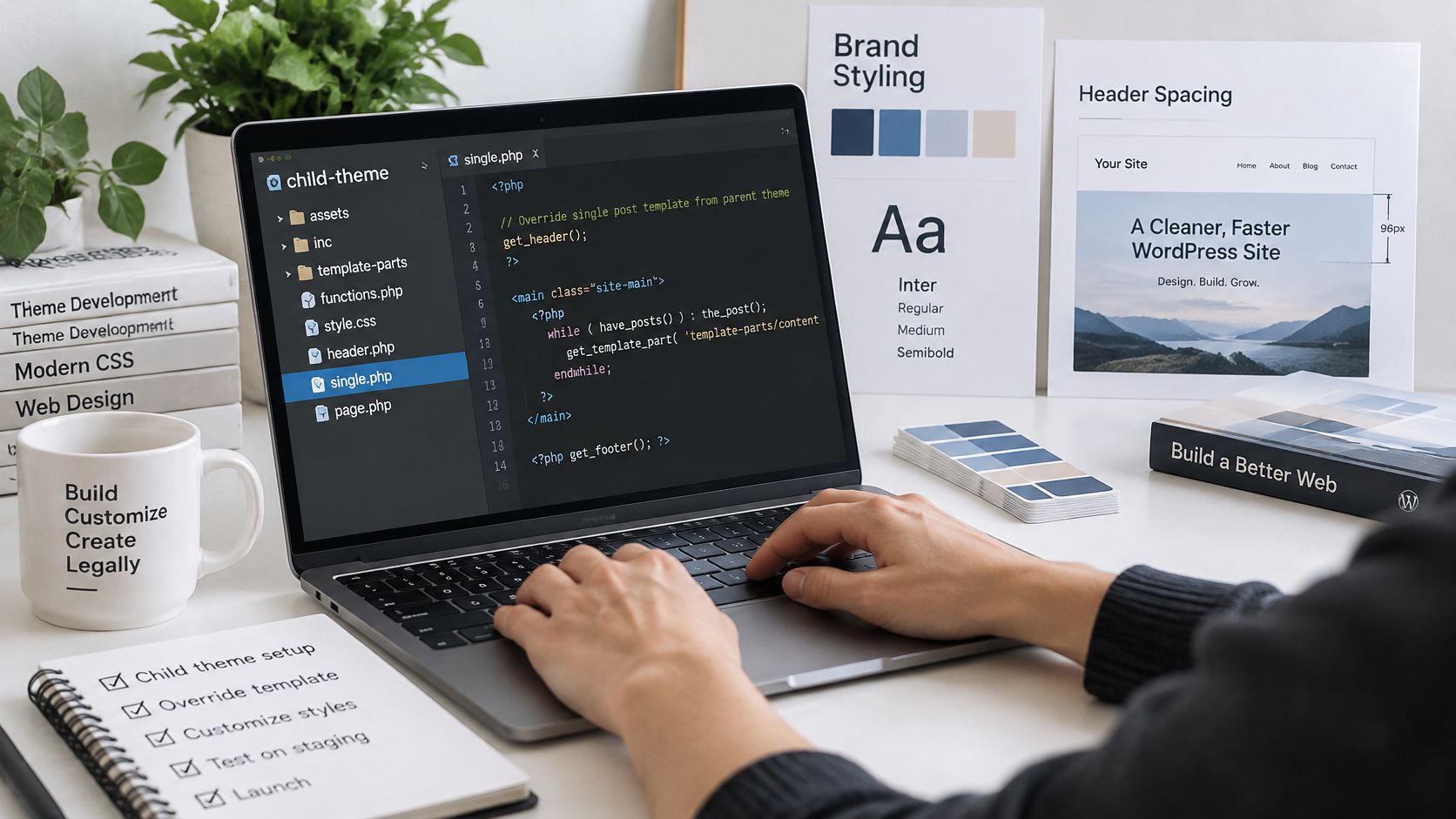
Build around the article
Say your chosen theme offers a large hero and a masonry grid. Those features may suit a photo portfolio, but a reading blog needs a clear title, a readable text measure, and an obvious route to older articles.
Reduce the hero to a short introduction, use a single column for long posts, and make archives a straightforward list. Check the phone layout before adding decorative backgrounds or extra font files. The result should reflect your content, not reproduce every element of a commercial demo.
Keep the custom layer focused:
- Foundation: Create a child-theme folder with a
style.cssheader whoseTemplatevalue matches the parent's directory name. - Styles: Enqueue the child stylesheet through
functions.php, following the parent's loading approach so you don't load its CSS twice. - Design settings: Use the Customizer or a child
theme.jsonfor supported colors, spacing, and typography. - Templates: Override only a template you need, and record why you copied it.
For a block theme, check whether Site Editor customizations stored in the database override your file changes. Export or document those settings so a later migration doesn't leave you guessing where the design lives.
The following video provides a visual reference alongside that file-based workflow.
Keep the exit inexpensive
Don't add a page builder merely to imitate a paid theme's screenshot. If the requirement is a calmer header and a narrower article column, solve those requirements directly. Avoid storing essential editorial content in theme-specific shortcodes or custom layout fields.
Parent-theme edits can disappear during updates. A child theme preserves separate files, but copied templates can still become outdated when the parent changes, so review your overrides after relevant updates.
A good custom layer can be removed without taking the articles with it.
Recheck search, posts and comments feeds, comment forms, and the empty-results message after changing templates. Keep a short record of every override. If the parent becomes unsupported, the child doesn't replace its maintenance, and moving to another maintained foundation is usually cleaner than accumulating emergency patches.
Piracy Risks and When Paying Is Cheaper
A free theme costs less than a premium subscription only when you can verify its author, license, and update channel. Otherwise, malware cleanup and lost search visibility can erase the savings. A cracked theme has no dependable update path, even if the download claims to be current.
WordPress security reports show that vulnerabilities affect themes and plugins across the ecosystem. That does not tell you whether a particular theme is safe, so check its source, license, and maintenance record rather than treating a broad risk figure as a verdict.
The financial comparison includes the cost of maintaining the site after installation.
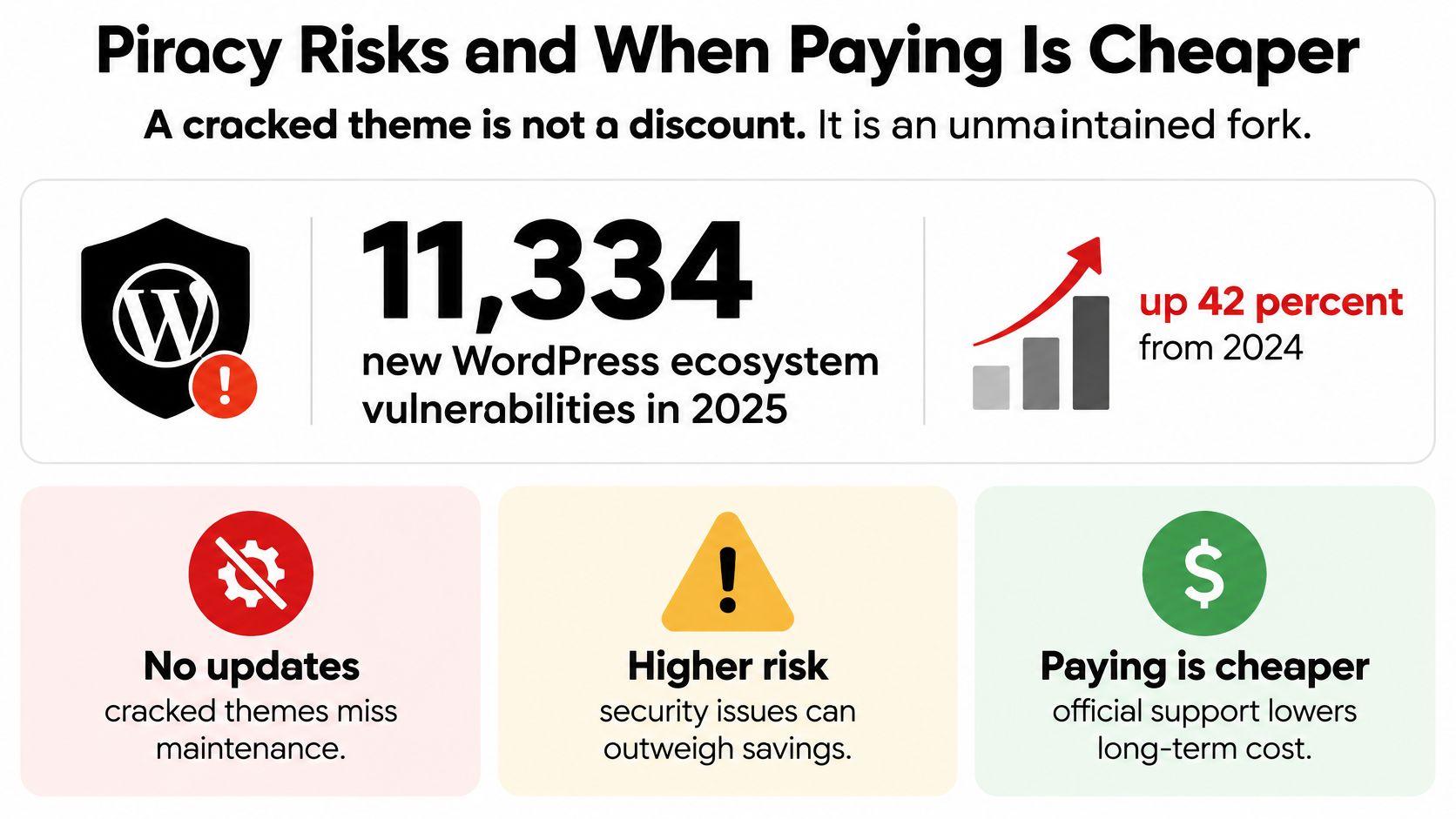
Count the work after a compromise
Malware cleanup can involve restoring files, examining the database, removing unauthorized users, rotating credentials, and checking scheduled tasks. A compromised site may serve spam or redirects that hurt search visibility. Restoring a backup alone does not close the vulnerability that allowed the compromise.
Paying does not guarantee security, and a maintained free theme can be a better choice than an abandoned paid one. An official license can give you a documented update channel and support under the vendor's terms. Check those terms before buying: the download price matters less than whether fixes will reach your site.
- Keep a reviewed free theme for a personal blog or prototype while its maintenance and features meet your needs.
- Budget for official support when your site accepts payments, stores customer accounts, or depends on a paid feature.
- Reject a bundled package if you cannot establish its origin, modifications, and update path.
Apply the same test to other free downloads
The same source checks apply to software downloads outside WordPress. Searches for free pro tools download or pro tools free download do not establish that the vendor offers the product for free. For free daemon tools and free zip tools, identify the publisher and read the license before running an installer.
For browser services, check permissions and how the service handles uploaded data, not just the price:
- Office and text work: Check document handling before using free office tools, free ocr tools, free writing tools, free humanizer tools, or free ai tools online.
- Creative work: Verify export rights and project portability for free editing tools for videos, free tools for video editing, free tools like photoshop, free drawing tools, and free wireframe tools.
- Business work: Review limits and data access for free budgeting tools, free crm tools, free bi tools, free visualization tools, and free map tools.
- Discovery: Confirm quotas when comparing free keyword tools or choosing a free keyword tool. Broad searches for free tools and free tools online do not establish authenticity.
Report a suspected theme vulnerability to its developer and the WordPress.org theme-review team rather than installing an anonymous patch.
Authenticity, updates, and the license must be checkable, or the theme is not free in any useful operational sense.
Choose the Route That Fits Your Site
Choose by the consequences of failure, not by how closely a screenshot resembles a paid demo. A personal blog can tolerate a simpler layout. A shop needs someone responsible for maintaining the software its customers depend on.
The Liquid Web vulnerability report from January 2026 identified 38 unpatched theme vulnerabilities among the themes reviewed, including critical arbitrary-file-upload issues in Blogistic, Blogzee, and Miion. That's a specific review, not a count of every vulnerable theme, but it illustrates why an attractive demo isn't evidence of ongoing maintenance.
Route by Site Risk
| Site type | Route this week | Switch to paid when |
|---|---|---|
| Personal blog | Directory theme with a child theme | The design needs a layout the free theme never offers |
| Class project or prototype | Official free tier or directory theme | The prototype becomes a public site requiring supported features |
| Temporary layout test | Time-limited trial, then the free theme | The trial ends and the layout must stay live |
| Site that takes payments or stores accounts | Supported official license | Budget before launch |
| Revenue site that cannot tolerate downtime | Maintained official theme with license | Any unsupported theme is already live |
Compare the exit as carefully as the entrance
An official free version is suitable when its included templates work and its update channel remains active. A trial is useful for evaluation, but you need an exit before access expires. A documented GPL copy requires particular attention to who supplies fixes and what assistance, if any, comes with it.
Compare candidates using keyboard accessibility, phone layouts, plugin compatibility, support availability, and migration effort. Visual similarity isn't product equivalence. A matching skin doesn't establish that you have the vendor's updater or entitlement to assistance.
Before switching, prepare a recovery record:
- Content and settings: Back up the database and files, and document important theme options.
- Theme dependencies: List theme-specific widgets, custom fields, shortcodes, and template assignments.
- Fallback: Keep the previous known-good package and a working route to restore it.
- Acceptance: Test representative articles and reader-facing utilities on staging before approving production.
For a general-interest publication, preserve reading and discovery before decorative details. Search, archives, and subscription access should remain understandable even when the styling changes.
Choose a route this week, save the author, license, and update details in your maintenance notes, and put the next theme check on your calendar. Leave an unsupported theme when its maintenance risk outweighs the work of replacing it, not only after the homepage stops loading.
Read More Info publishes general-interest WordPress articles and provides open feeds for posts and comments. Visit Read More Info for further reading as you choose a legitimate free theme and plan a maintainable WordPress site.