WordPress Post Category Page Explained: URLs and Templates
A WordPress post category page is an automatic archive of posts filed under one category. Learn how its URLs and templates work and how to customize one.

You've just published a post, clicked its category link, and found a page you never remember creating. It has the right posts, but the title is plain, the layout looks generic, and you can't find it under Pages to edit it. That isn't a mistake. You've met a WordPress post category page, and WordPress built it for you.
What a Category Page Is and Why It Matters
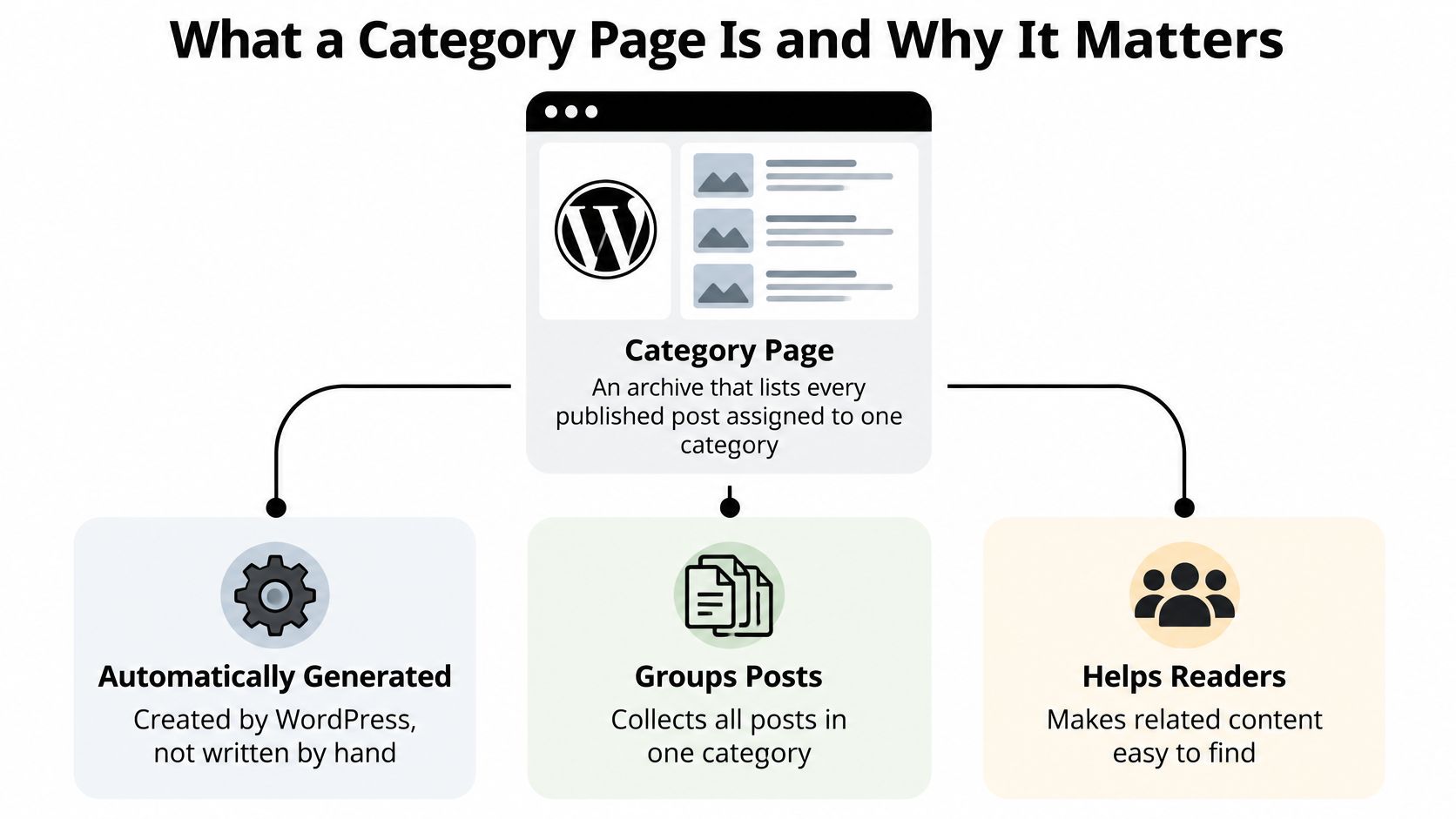
A WordPress post category page is an archive that lists every published post assigned to one category. WordPress generates it automatically, so you don't write or update it by hand.
Say you run a cookbook site with a Recipes category. You publish a new soup post, tick Recipes, and press Publish. The post appears at /category/recipes/ right away, at the top of the list, even though you never opened that page.
Think of a category as a labelled shelf in a library. The shelf label says Recipes. The category page is the current list of what's sitting on that shelf, so the list changes whenever you add or remove a book.
What visitors see by default
Most themes show the category name as the page title, then the optional category description if you've written one. Below that sits a list of post titles with excerpts, newest first, plus pagination links at the bottom. The WordPress documentation on taxonomies explains that categories are a default, hierarchical taxonomy, while tags are also provided by default but are non-hierarchical.
Hierarchical means categories can nest. Recipes can have a child category called Desserts, which lives at /category/recipes/desserts/. The parent Recipes archive also lists posts filed under Desserts, because WordPress includes child categories by default.
A static page holds fixed content you edit by hand. A category page holds the result of a query, so it updates whenever your posts change.
That distinction explains the confusion at the start. You can't find the archive under Pages because it was never a page you authored. It's a live view built from the relationship between your posts and one category term.
Try a quick check on your own site. Open a category link, publish one test post in that category, then reload. If the test post sits at the top, your archive is working exactly as designed.
Which Template WordPress Uses for a Category Page
WordPress picks the file that renders your archive by walking a fixed list, from most specific to most general, and using the first file it finds.
| Classic theme file | Block theme file | Applies when |
|---|---|---|
| category-{slug}.php | category-{slug}.html | Only the category with that slug, for example category-news.php |
| category-{ID}.php | category-{id}.html | Only the category with that numeric ID, for example category-6.php |
| category.php | category.html | Any category without a more specific template |
| archive.php | archive.html | Any archive, including tags, dates and authors, when no category template exists |
| index.php | index.html | Final fallback for every page type |
Reading the table with a real category
Take a category with the slug news and ID 6. As the WordPress developer documentation on the template hierarchy sets out, WordPress first checks category-news.php, then category-6.php, then category.php, archive.php, and finally index.php. Block themes follow the same order with .html files.
A missing file isn't an error. If category-news.php doesn't exist, WordPress moves down the list. That fallback behaviour means deleting a specialised file never breaks the archive; it just hands the job to the next template.
What the pattern means for your edits
If every category on your site looks like a plain, generic archive, one shared file is probably doing all the work. That's usually category.php or archive.php. One edit there changes every category that relies on it, which is efficient, but also easy to overdo.
A slug specific file works the opposite way. Creating category-news.php changes News and nothing else. That's worth doing only when one category needs a materially different layout, such as a lead story block or extra local navigation.
Practical rule: keep shared markup in category.php, and add a slug specific template only when a single category genuinely needs different structure.
You don't have to guess which file is live. A debugging plugin such as Query Monitor lists the template file loaded for the page you're viewing. Open your archive, check the reported file, and you'll know exactly where a change belongs. If you want the wider picture first, work through this guide to how WordPress manages content and then return to your archive with the file name confirmed.
Once you can predict the file, customisation stops feeling mysterious. You're no longer hunting for a page to edit. You're choosing the right layer to work on, shared or specific, and each choice has a clear blast radius.
How Category URLs and Archives Are Generated
A category archive is never stored as a finished page waiting for a visitor. WordPress builds the URL and the list of posts on the fly, each time someone asks. Once you see it that way, the address pattern stops looking arbitrary and the behaviour of your archives starts making sense.
By default, a category URL follows the pattern /category/{slug}/. A child category inserts its parent's slug, so Desserts under Recipes becomes /category/recipes/desserts/. The slug sits under Posts > Categories in your dashboard. Hover over a category and click View to open the live archive, which is the fastest way to confirm the correct address instead of guessing it.
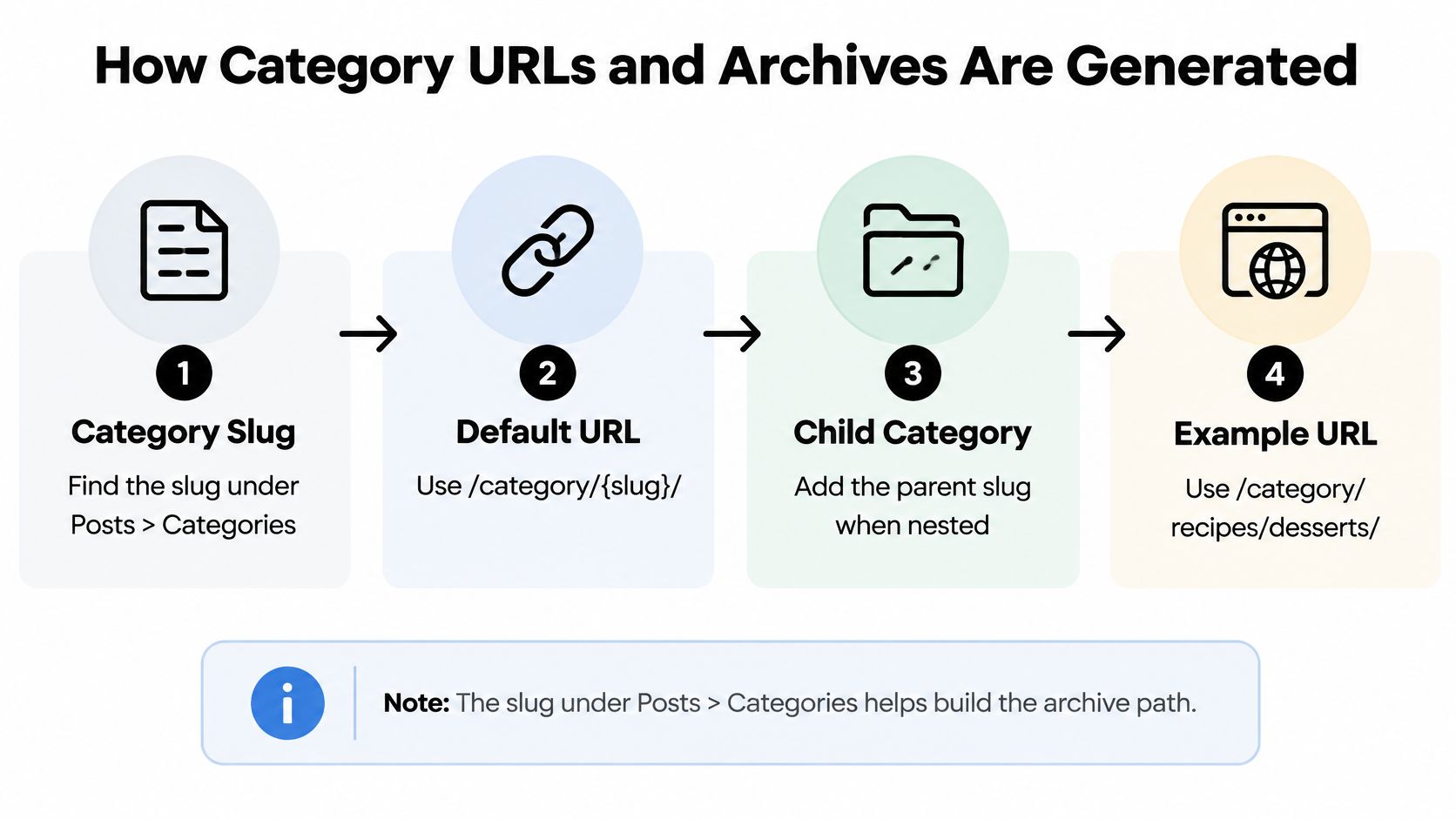
Changing a slug or the category base
Editing a slug changes the URL immediately, and that surprises people. Old links, bookmarks, and search results still point at the previous address, so add a redirect from the old URL before you save. A redirect plugin or your host's redirect tool handles this in a minute.
The word category itself is the category base, set under Settings > Permalinks. Changing it rewrites the prefix for every category at once, so plan redirects for all of them before you touch that field. This is the change most likely to break a working site.
How the list gets built
Behind each archive sit three database tables doing separate jobs. WordPress stores the term's name in one table, records what kind of classification it is (category, tag, or a custom taxonomy) in a second, and keeps the links between terms and posts in a third. That split is why one post can live under several categories without being copied anywhere.
The same relationship model extends past built in categories, and this overview of custom post types and taxonomies shows it applied to content types you define yourself.
When a visitor opens an archive, WordPress looks up which posts are linked to that term and displays them at request time. No finished HTML file exists, which is why a newly published post appears in the archive instantly, with no regeneration step to run or forget.
The archive works like a card catalogue in an old library. One book can have cards under several subjects, and each subject's list is assembled from those cards on demand. A post filed under two categories appears in both archives without being duplicated.
Because the archive is a query with a set page size, extra results spill onto addresses like /category/recipes/page/2/, and your theme controls how visitors reach those later pages. The most common breakage is far simpler than any of this: change a slug without a redirect, and every old category link returns an error.
How to Customize a Category Page Step by Step
Each step below is small on purpose. Do them in order, and you'll know which change caused what if something looks wrong.
The example screenshot below shows the category management screen where the first two steps happen.
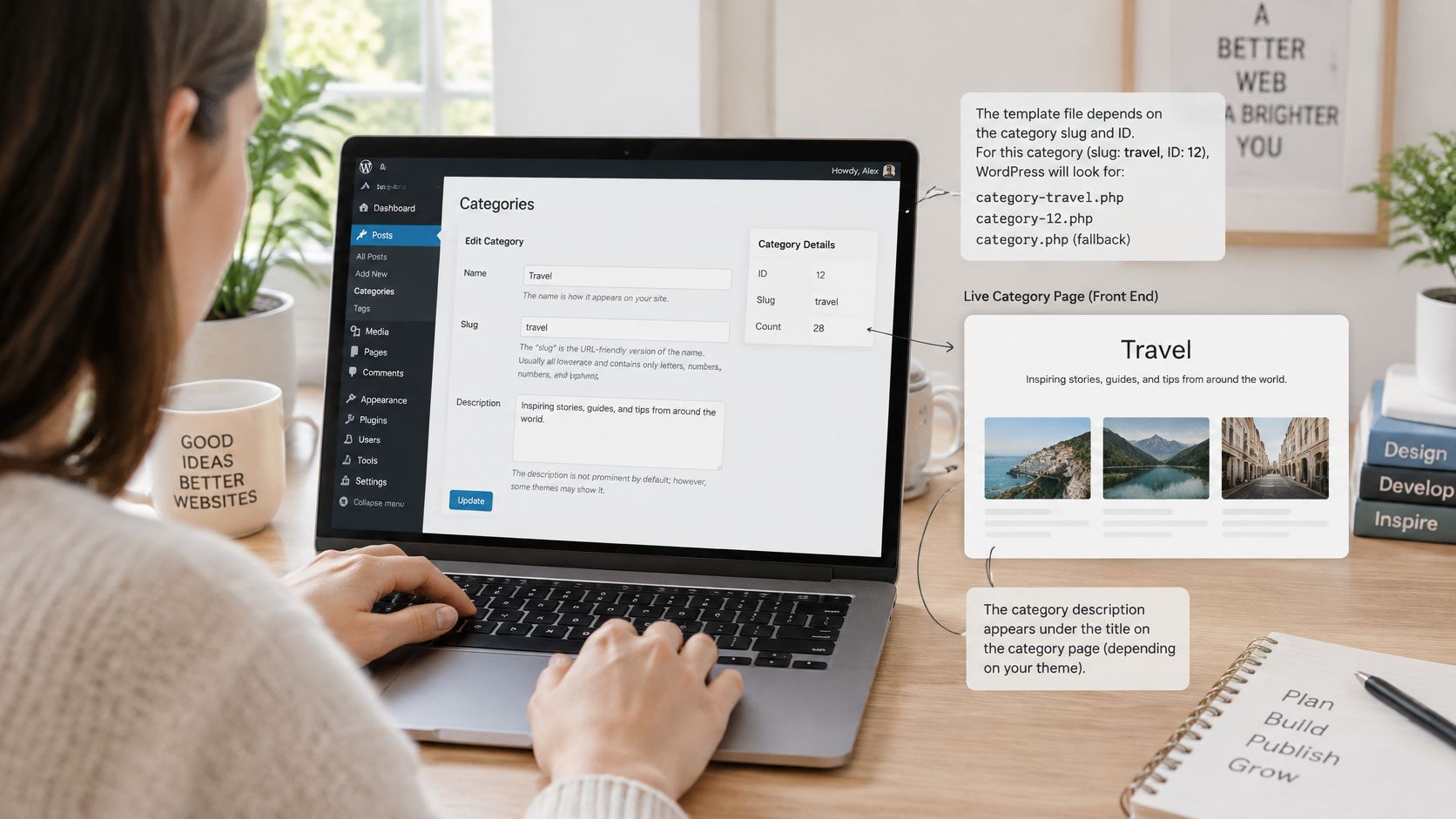
Prepare before you touch a template
- Check the slug and ID under Posts > Categories. Your template file name depends on these, so copying a file name from a tutorial without checking is the classic slip.
- Write a clear category description. Many themes print it under the title, and it tells visitors and screen reader users what this archive covers. One or two plain sentences beat a keyword stuffed paragraph.
- Review posts per page under Settings > Reading. The WordPress block reference for the Query Pagination block covers the previous, numbered, and next navigation for paginated lists, and WordPress paginates archives at 10 posts per page by default. Keep that default until you've tested page length and load time on a phone.
Make the change in the right place
- For a classic theme, work in a child theme. Copy category.php from the parent theme into your child theme and rename it to category-{slug}.php. Editing the parent theme directly is the mistake that hurts later, because the next theme update overwrites your work.
- For a block theme, use the Site Editor. Open Templates, create a Category template, and target the specific category. The change stays visible in the template list, so future you can find it.
- Change one thing, then preview. Move the description above the post list, or add a sidebar, but not both at once. Small steps make it obvious which edit helped and which one cluttered the page.
The walkthrough below shows these editing moves on screen, so you can match each click to the steps above.
- Test like a visitor. Open the archive in a private browser window on a phone and a desktop. Then open a category with no posts and confirm the empty state explains itself and offers search.
This workflow suits a tools roundup site just as well as a cookbook. Your categories might cover free office tools, free tools more broadly, free ai tools online, free ocr tools, free editing tools for videos, free tools for video editing, free daemon tools, free zip tools, free pro tools download, pro tools free download, free keyword tools, free keyword tool guides, free tools like photoshop, free budgeting tools, free humanizer tools, free tools online, free wireframe tools, free bi tools, free visualization tools, free writing tools, free drawing tools, free crm tools, and free map tools. Each one still gets its own generated archive, and shared edits in category.php improve all of them at once.
Pagination, Load More or Infinite Scroll for Archives
The question behind this choice isn't which pattern looks modern. It's whether your older posts stay reachable for search engines and keyboard users once the archive grows.
| Pattern | Older posts reachable by links | Reader experience | Best fit |
|---|---|---|---|
| Numbered pagination | Yes, through ordinary page links | Predictable position and easy return to earlier pages | Blogs with a growing back catalogue |
| Load more button | Only if each chunk has its own URL and links | Stays on one page; footer and place in list are harder to reach | Modest archives where readers browse recent posts |
| Infinite scroll | Only with stable URLs and sequential links | Continuous flow that can cause fatigue and loses the sense of total size | Short feeds of recent, low-stakes posts |
Why ordinary links matter
Numbered pagination creates plain addresses such as /category/topic/page/2/. Crawlers follow those links easily, and assistive technologies can announce them clearly. Readers also gain a stable sense of position, so returning to page four tomorrow takes one click.
Load more and infinite scroll feel smoother, but they carry a condition. Google's guidance on pagination and incremental page loading warns that crawlers may not discover content loaded only after scrolling, and it identifies scrolling fatigue and unclear result size as usability disadvantages. An indexable version needs a stable, unique URL for each chunk, consistent content at that URL, and sequential crawlable links between chunks.
Choosing for your archive
Weigh four things.
- Archive size: a handful of pages suits any pattern, while hundreds of posts punish endless scrolling.
- Publishing frequency: fast growing archives shift content between pages often, so stable URLs matter more.
- Mobile bandwidth: loading everything at once costs your readers data they didn't ask to spend.
- Evergreen value: if older posts still answer real questions, they deserve durable links.
Say your blog holds 300 posts in one category at 10 per page. That's 30 archive pages, which suits numbered navigation with previous, next, and last page links. Scrolling through 300 posts to reach the footer would exhaust anyone.
A load more button layered on top of real /page/2/ links gives readers a smooth browse without hiding older posts from anyone.
Test your choice directly. Type the address for page 5 of a category into your browser, without scrolling there first. If its posts and the next link appear immediately, your archive works for readers, crawlers, and keyboard users alike.
Making a Category Archive Accessible and Easy to Use
A minimal archive isn't automatically an accessible one. Removing visual clutter can speed a page up, but removing labels, context, or landmarks makes discovery harder for people using assistive technology.
The checklist image below mirrors the audit you're about to run on your own archive.
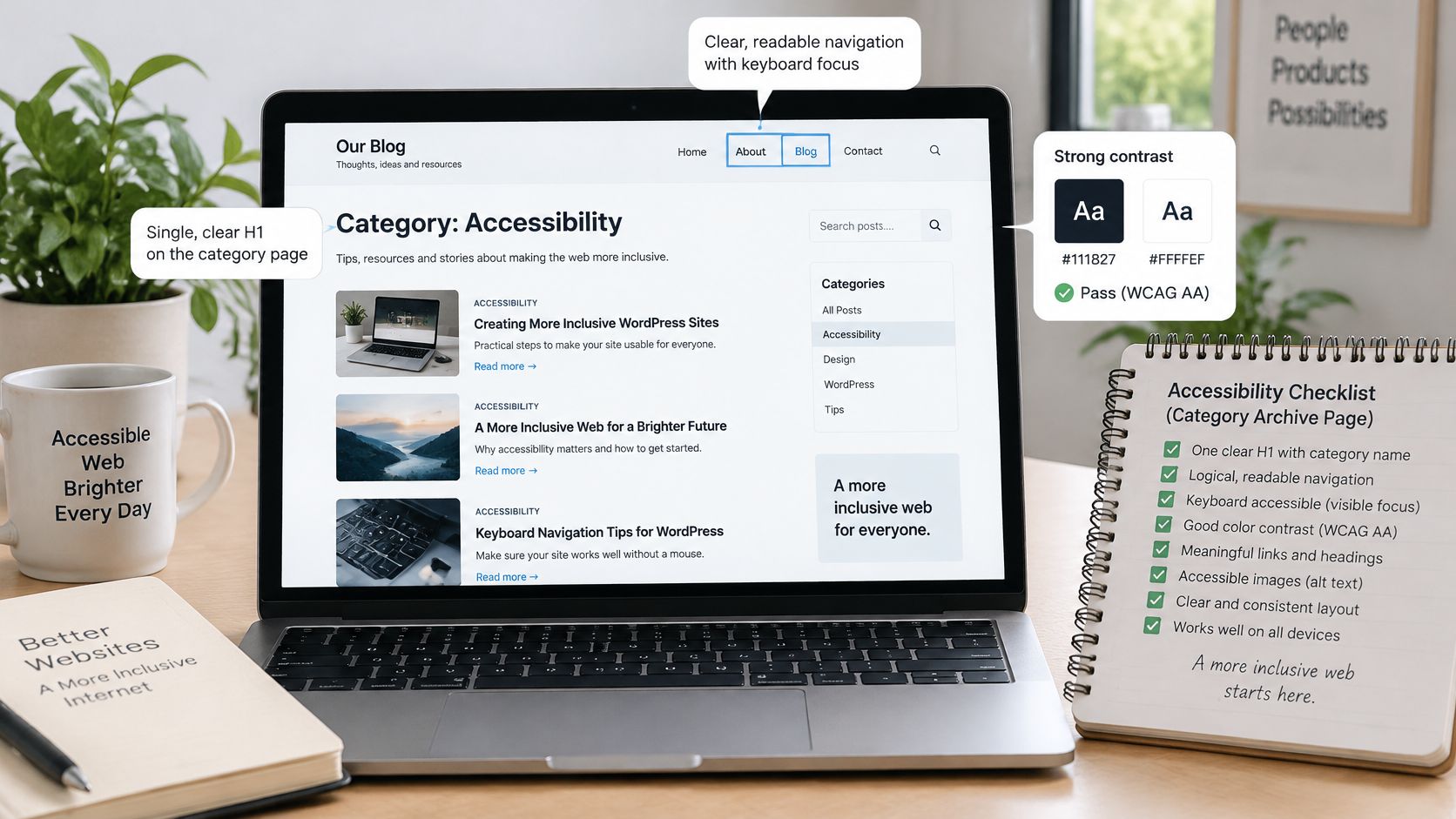
An eight point archive check
- One H1 that names the category, so the page announces its identity immediately.
- Heading levels that never skip, with H2 directly under H1 rather than jumping to H4 for styling.
- Named landmarks for the header, navigation, main content, search, and footer, so screen reader users can jump between regions.
- A category description whose first sentence states what the topic covers, in text that stays readable on a phone.
- Pagination with descriptive text such as Older posts or Page 3 of 12, instead of bare numbers with no context.
- A focus order that matches the visual order when you tab through the page with a keyboard.
- Post titles as link text, rather than a column of identical Read more links that all sound the same read aloud.
- An empty state that helps, explaining that no posts exist yet and offering the search field.
The heading and landmark checks come straight from WebAIM's web accessibility evaluation guide, which recommends correctly identifying regions such as the header, main content, footer, navigation, and search form, confirming an describes the content, and flags skipped heading levels as a structural problem.
Run the tab test yourself before anything else. Put your mouse aside, press Tab repeatedly, and watch whether the focus outline moves in a sensible order and stays visible. If focus vanishes or leaps around, your template needs attention regardless of how clean it looks.
Clear labels do double duty here. They help a screen reader user understand the archive, and they help search engines understand it too. Accessibility on a category page isn't a separate technical chore. It's the same work as making the archive a useful hub for its topic.
Audit One Category Archive Before Changing Anything
A category archive is generated by WordPress rather than built page by page, so one template or settings change ripples across every page of that archive at once. That reach is exactly why you audit before you edit. Open the busiest category in a private browser window, logged out, and read it the way a visitor arriving from a search result would.
Four checks, in order
- The URL. Confirm the address follows the /category/{slug}/ pattern you expect, with no surprise redirects or extra path segments.
- The title and description. Read them cold. Would a stranger know within seconds what belongs in this archive?
- The template. Check that WordPress loads the file you predicted. A reliable test is to drop a temporary HTML comment such as
<!-- category.php loaded -->into each candidate file, then view the page source and see which comment appears. - The pagination. Divide the count beside the category name in Posts > Categories by your posts per page setting, then click through to the last numbered page. Every post should be reachable, and the final page should not come back empty.
One change, then stop
Choose a single change based on what the audit showed, the way you would run one test print before committing a full batch. Leave a generic archive alone if it already works. Add a slug specific template such as category-news.php in a child theme when one category needs its own layout, or switch to numbered pagination when older posts sit too many clicks deep.
Record the change, the reason for it, and the date. That short note saves real confusion months later, when you have forgotten why one archive looks different from the rest.
Finish with a five minute test: publish one post in the category, confirm it lands at the top of the list, and check the page on a phone. If publishing a post is the step you have not practiced yet, this guide to creating posts in WordPress covers that part of the workflow. Leave the rest of the site untouched until the test passes, because one verified archive beats ten half changed ones.
We publish plain language WordPress guides at Read More Info, covering posts, archives, and the everyday settings that keep a small site organised, and you can follow new articles and discussion through the posts and comments feeds in your RSS reader. If you are tidying up your own category archives, visit Read More Info for more step by step tutorials you can apply one careful change at a time.